<?xml version="1.0" encoding="utf-8"?><feed xmlns="http://www.w3.org/2005/Atom" ><generator uri="https://jekyllrb.com/" version="3.10.0">Jekyll</generator><link href="https://www.krisvandermast.com/feed.xml" rel="self" type="application/atom+xml" /><link href="https://www.krisvandermast.com/" rel="alternate" type="text/html" /><updated>2026-01-10T11:21:46+01:00</updated><id>https://www.krisvandermast.com/feed.xml</id><title type="html">Kris van der Mast</title><subtitle>Web development, Microsoft Azure, ASP.NET MVC, chatbots, ...</subtitle><author><name>Kris van der Mast</name></author><entry><title type="html">Reading feather files in Power BI</title><link href="https://www.krisvandermast.com/post/2024/02/27/reading-feather-files-in-power-bi.html" rel="alternate" type="text/html" title="Reading feather files in Power BI" /><published>2024-02-27T09:59:26+01:00</published><updated>2024-02-27T09:59:26+01:00</updated><id>https://www.krisvandermast.com/post/2024/02/27/reading-feather-files-in-power-bi</id><content type="html" xml:base="https://www.krisvandermast.com/post/2024/02/27/reading-feather-files-in-power-bi.html"><![CDATA[<p>Now that we know how to <a href="https://www.krisvandermast.com/post/2024/01/23/setting-up-a-virtual-environment-in-python">set up our local virtual environment and install the required packages</a>, we can start reading the feather file in Power BI.</p>

<p>First activate the virtual environment and install the package <code class="language-plaintext highlighter-rouge">pyarrow</code> with the command <code class="language-plaintext highlighter-rouge">pip install pyarrow</code>. This will install the required package in the virtual environment. You can check if the package is installed by running the command <code class="language-plaintext highlighter-rouge">pip list</code>.<br />
Note that in future releases of Pandas the <code class="language-plaintext highlighter-rouge">pyarrow</code> package will be included by default. This means that you don’t have to install the package separately.</p>

<h3 id="feather-files">Feather files?</h3>

<p>Feather is a fast, lightweight, and easy-to-use binary columnar data store. It is designed to make reading and writing data frames efficient, and to make sharing data across data analysis languages easy. Feather uses the Apache Arrow columnar memory specification to represent binary data on disk. This makes reading and writing data frames in Python and R very fast. Feather is a part of the broader Apache Arrow project. If you installed the package <code class="language-plaintext highlighter-rouge">pyarrow</code> you can read and write feather files in Python. Basically it extends pandas capabilities to read and write feather files.</p>

<div class="language-python highlighter-rouge"><div class="highlight"><pre class="highlight"><code><span class="kn">import</span> <span class="nn">pandas</span> <span class="k">as</span> <span class="n">pd</span>

<span class="c1"># Read the feather file
</span><span class="n">df</span> <span class="o">=</span> <span class="n">pd</span><span class="p">.</span><span class="n">read_feather</span><span class="p">(</span><span class="s">'C:/path/to/your/file.ftr'</span><span class="p">)</span>

<span class="c1"># Write a dataframe to a feather file
</span><span class="n">df</span><span class="p">.</span><span class="n">to_feather</span><span class="p">(</span><span class="s">'C:/path/to/your/file.ftr'</span><span class="p">)</span>
</code></pre></div></div>

<h3 id="power-bi-and-feather-files">Power BI and feather files</h3>

<p>Even though Power BI has a lot of connectors to read data from different sources, it doesn’t have a connector to read feather files at the moment of writing this blog post. However, we can use Python to read the feather file and import the data into Power BI.</p>

<p>After creating a new report in Power BI, check if the virtual environment is set up correctly as per the <a href="https://www.krisvandermast.com/post/2024/02/06/setting-up-python-for-power-bi">former blog post</a>. If so select <code class="language-plaintext highlighter-rouge">Get datasource</code> &gt; <code class="language-plaintext highlighter-rouge">More...</code> &gt; <code class="language-plaintext highlighter-rouge">Other</code> &gt; <code class="language-plaintext highlighter-rouge">Python script</code> and click <code class="language-plaintext highlighter-rouge">Connect</code>.</p>

<p>The editor will appear. Here you can provide some Python code to read the feather file and import the data into Power BI.</p>

<div class="language-python highlighter-rouge"><div class="highlight"><pre class="highlight"><code><span class="kn">import</span> <span class="nn">pandas</span> <span class="k">as</span> <span class="n">pd</span>

<span class="n">lipsum</span> <span class="o">=</span> <span class="n">pd</span><span class="p">.</span><span class="n">read_feather</span><span class="p">(</span><span class="sa">r</span><span class="s">'C:\temp\test.ftr'</span><span class="p">)</span>
</code></pre></div></div>

<p>Notice the <code class="language-plaintext highlighter-rouge">r</code> in front of the path. This is to indicate that the string is a raw string. This is useful when you have backslashes in your path. The <code class="language-plaintext highlighter-rouge">pd.read_feather</code> function reads the feather file and stores the data in the variable <code class="language-plaintext highlighter-rouge">lipsum</code>. You can now use the variable <code class="language-plaintext highlighter-rouge">lipsum</code> to manipulate and visualize your data in Power BI.</p>

<p><img src="/images/feather_file_in_power_bi_result.png" alt="The result of reading in the feather file with Pandas and Pyarrow" /></p>]]></content><author><name>Kris van der Mast</name></author><category term="post" /><category term="power bi" /><category term="python" /><summary type="html"><![CDATA[Now that we know how to set up our local virtual environment and install the required packages, we can start reading the feather file in Power BI. First activate the virtual environment and install the package pyarrow with the command pip install pyarrow. This will install the required package in the virtual environment. You can check if the package is installed by running the command pip list. Note that in future releases of Pandas the pyarrow package will be included by default. This means that you don’t have to install the package separately. Feather files? Feather is a fast, lightweight, and easy-to-use binary columnar data store. It is designed to make reading and writing data frames efficient, and to make sharing data across data analysis languages easy. Feather uses the Apache Arrow columnar memory specification to represent binary data on disk. This makes reading and writing data frames in Python and R very fast. Feather is a part of the broader Apache Arrow project. If you installed the package pyarrow you can read and write feather files in Python. Basically it extends pandas capabilities to read and write feather files. import pandas as pd # Read the feather file df = pd.read_feather('C:/path/to/your/file.ftr') # Write a dataframe to a feather file df.to_feather('C:/path/to/your/file.ftr') Power BI and feather files Even though Power BI has a lot of connectors to read data from different sources, it doesn’t have a connector to read feather files at the moment of writing this blog post. However, we can use Python to read the feather file and import the data into Power BI. After creating a new report in Power BI, check if the virtual environment is set up correctly as per the former blog post. If so select Get datasource &gt; More... &gt; Other &gt; Python script and click Connect. The editor will appear. Here you can provide some Python code to read the feather file and import the data into Power BI. import pandas as pd lipsum = pd.read_feather(r'C:\temp\test.ftr') Notice the r in front of the path. This is to indicate that the string is a raw string. This is useful when you have backslashes in your path. The pd.read_feather function reads the feather file and stores the data in the variable lipsum. You can now use the variable lipsum to manipulate and visualize your data in Power BI.]]></summary></entry><entry><title type="html">Using Python in Power BI</title><link href="https://www.krisvandermast.com/post/2024/02/13/using-python-in-power-bi.html" rel="alternate" type="text/html" title="Using Python in Power BI" /><published>2024-02-13T09:59:12+01:00</published><updated>2024-02-13T09:59:12+01:00</updated><id>https://www.krisvandermast.com/post/2024/02/13/using-python-in-power-bi</id><content type="html" xml:base="https://www.krisvandermast.com/post/2024/02/13/using-python-in-power-bi.html"><![CDATA[<p>In the former blog post we set up the <a href="https://www.krisvandermast.com/post/2024/01/23/setting-up-a-virtual-environment-in-python">virtual environment</a> for <a href="https://www.krisvandermast.com/post/2024/02/06/setting-up-python-for-power-bi">Python in Power BI</a>. In this post, I will show you how to use Python in Power BI.</p>

<h3 id="to-check">To check</h3>

<p>Be sure to activate the virtual environment in a command prompt, I’m using powerbienv in the examples as set up in the <a href="https://www.krisvandermast.com/post/2024/02/06/setting-up-python-for-power-bi">former blog post</a>. If you haven’t yet install the packages <code class="language-plaintext highlighter-rouge">numpy</code>, <code class="language-plaintext highlighter-rouge">pandas</code> and <code class="language-plaintext highlighter-rouge">matplotlib</code> by typing <code class="language-plaintext highlighter-rouge">pip install numpy pandas matplotlib</code>. This will install the packages in the virtual environment. We will need these packages to manipulate and visualize data in Power BI.</p>

<h3 id="create-a-new-report">Create a new report</h3>

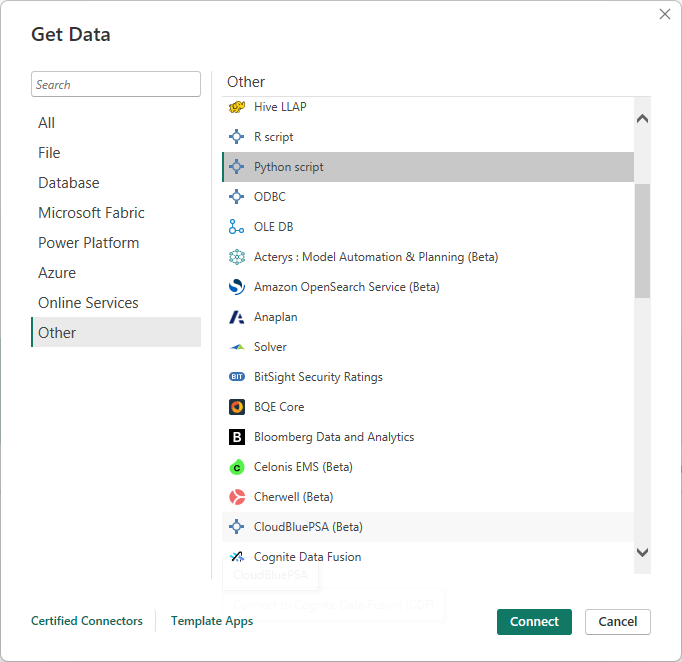
<p>After creating a new reportin Power BI, check if the virtual environment is set up correctly as per the <a href="https://www.krisvandermast.com/post/2024/02/06/setting-up-python-for-power-bi">former blog post</a>. If so select <code class="language-plaintext highlighter-rouge">Get datasource</code> &gt; <code class="language-plaintext highlighter-rouge">More...</code> &gt; <code class="language-plaintext highlighter-rouge">Other</code> &gt; <code class="language-plaintext highlighter-rouge">Python script</code> and click <code class="language-plaintext highlighter-rouge">Connect</code>.</p>

<p><img src="/images/python_power_bi_python_script_connector.png" alt="" /></p>

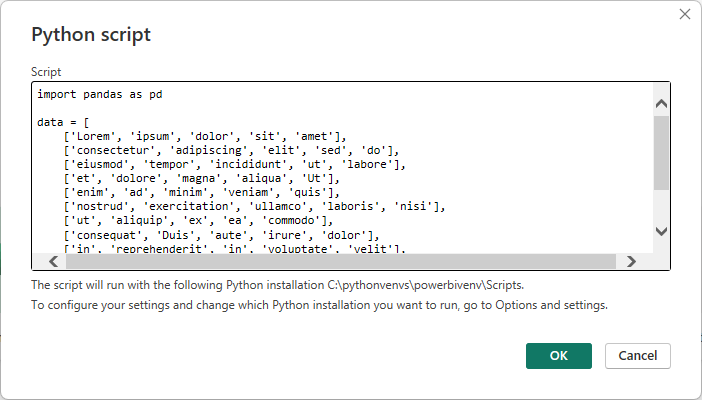
<p>Then provide some snippet of Python code and click <code class="language-plaintext highlighter-rouge">OK</code>.</p>

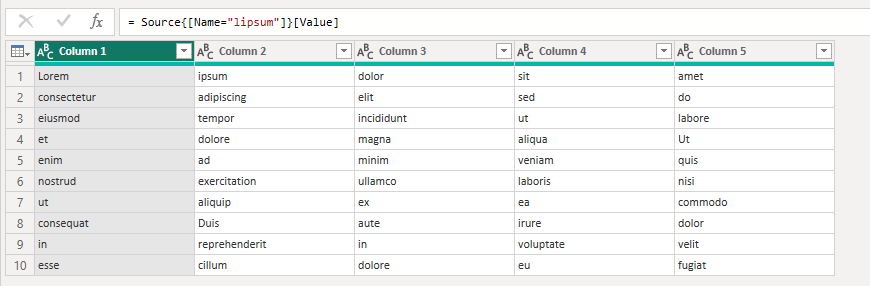
<p>I used the following sample code based on Lorem Ipsum text:</p>

<div class="language-python highlighter-rouge"><div class="highlight"><pre class="highlight"><code><span class="kn">import</span> <span class="nn">pandas</span> <span class="k">as</span> <span class="n">pd</span>

<span class="n">data</span> <span class="o">=</span> <span class="p">[</span>
    <span class="p">[</span><span class="s">'Lorem'</span><span class="p">,</span> <span class="s">'ipsum'</span><span class="p">,</span> <span class="s">'dolor'</span><span class="p">,</span> <span class="s">'sit'</span><span class="p">,</span> <span class="s">'amet'</span><span class="p">],</span>
    <span class="p">[</span><span class="s">'consectetur'</span><span class="p">,</span> <span class="s">'adipiscing'</span><span class="p">,</span> <span class="s">'elit'</span><span class="p">,</span> <span class="s">'sed'</span><span class="p">,</span> <span class="s">'do'</span><span class="p">],</span>
    <span class="p">[</span><span class="s">'eiusmod'</span><span class="p">,</span> <span class="s">'tempor'</span><span class="p">,</span> <span class="s">'incididunt'</span><span class="p">,</span> <span class="s">'ut'</span><span class="p">,</span> <span class="s">'labore'</span><span class="p">],</span>
    <span class="p">[</span><span class="s">'et'</span><span class="p">,</span> <span class="s">'dolore'</span><span class="p">,</span> <span class="s">'magna'</span><span class="p">,</span> <span class="s">'aliqua'</span><span class="p">,</span> <span class="s">'Ut'</span><span class="p">],</span>
    <span class="p">[</span><span class="s">'enim'</span><span class="p">,</span> <span class="s">'ad'</span><span class="p">,</span> <span class="s">'minim'</span><span class="p">,</span> <span class="s">'veniam'</span><span class="p">,</span> <span class="s">'quis'</span><span class="p">],</span>
    <span class="p">[</span><span class="s">'nostrud'</span><span class="p">,</span> <span class="s">'exercitation'</span><span class="p">,</span> <span class="s">'ullamco'</span><span class="p">,</span> <span class="s">'laboris'</span><span class="p">,</span> <span class="s">'nisi'</span><span class="p">],</span>
    <span class="p">[</span><span class="s">'ut'</span><span class="p">,</span> <span class="s">'aliquip'</span><span class="p">,</span> <span class="s">'ex'</span><span class="p">,</span> <span class="s">'ea'</span><span class="p">,</span> <span class="s">'commodo'</span><span class="p">],</span>
    <span class="p">[</span><span class="s">'consequat'</span><span class="p">,</span> <span class="s">'Duis'</span><span class="p">,</span> <span class="s">'aute'</span><span class="p">,</span> <span class="s">'irure'</span><span class="p">,</span> <span class="s">'dolor'</span><span class="p">],</span>
    <span class="p">[</span><span class="s">'in'</span><span class="p">,</span> <span class="s">'reprehenderit'</span><span class="p">,</span> <span class="s">'in'</span><span class="p">,</span> <span class="s">'voluptate'</span><span class="p">,</span> <span class="s">'velit'</span><span class="p">],</span>
    <span class="p">[</span><span class="s">'esse'</span><span class="p">,</span> <span class="s">'cillum'</span><span class="p">,</span> <span class="s">'dolore'</span><span class="p">,</span> <span class="s">'eu'</span><span class="p">,</span> <span class="s">'fugiat'</span><span class="p">]</span>
<span class="p">]</span>

<span class="n">df</span> <span class="o">=</span> <span class="n">pd</span><span class="p">.</span><span class="n">DataFrame</span><span class="p">(</span><span class="n">data</span><span class="p">,</span> <span class="n">columns</span><span class="o">=</span><span class="p">[</span><span class="s">'Column 1'</span><span class="p">,</span> <span class="s">'Column 2'</span><span class="p">,</span> <span class="s">'Column 3'</span><span class="p">,</span> <span class="s">'Column 4'</span><span class="p">,</span> <span class="s">'Column 5'</span><span class="p">])</span>  
</code></pre></div></div>

<p><img src="/images/python_power_bi_python_script_editor.png" alt="" /></p>

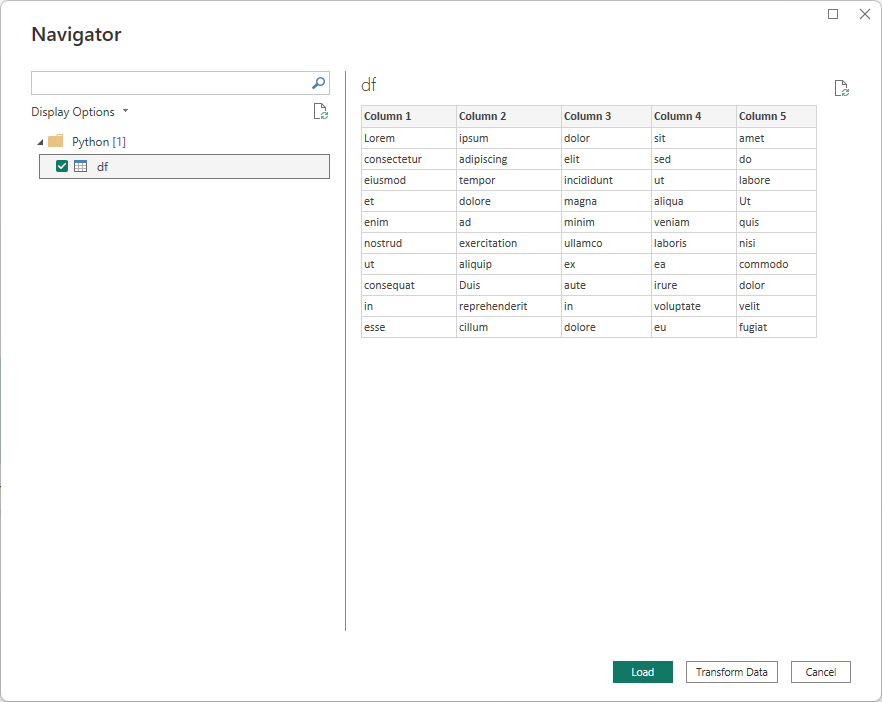
<p>Press OK and the navigator will appear. Here you can select the data you want to import.</p>

<p><img src="/images/python_power_bi_python_script_navigator.png" alt="" /></p>

<p>Press the Transform Data button.</p>

<p>After you followed all the steps you can open the Advanced Editor and see the Python script that was generated. You can now use Python to manipulate and visualize your data in Power BI.</p>

<div class="language-lua highlighter-rouge"><div class="highlight"><pre class="highlight"><code><span class="n">let</span>
    <span class="n">Source</span> <span class="o">=</span> <span class="n">Python</span><span class="p">.</span><span class="n">Execute</span><span class="p">(</span><span class="s2">"import pandas as pd#(lf)#(lf)data = [#(lf)    ['Lorem', 'ipsum', 'dolor', 'sit', 'amet'],#(lf)    ['consectetur', 'adipiscing', 'elit', 'sed', 'do'],#(lf)    ['eiusmod', 'tempor', 'incididunt', 'ut', 'labore'],#(lf)    ['et', 'dolore', 'magna', 'aliqua', 'Ut'],#(lf)    ['enim', 'ad', 'minim', 'veniam', 'quis'],#(lf)    ['nostrud', 'exercitation', 'ullamco', 'laboris', 'nisi'],#(lf)    ['ut', 'aliquip', 'ex', 'ea', 'commodo'],#(lf)    ['consequat', 'Duis', 'aute', 'irure', 'dolor'],#(lf)    ['in', 'reprehenderit', 'in', 'voluptate', 'velit'],#(lf)    ['esse', 'cillum', 'dolore', 'eu', 'fugiat']#(lf)]#(lf)#(lf)df = pd.DataFrame(data, columns=['Column 1', 'Column 2', 'Column 3', 'Column 4', 'Column 5'])"</span><span class="p">),</span>
    <span class="n">df1</span> <span class="o">=</span> <span class="n">Source</span><span class="p">{[</span><span class="n">Name</span><span class="o">=</span><span class="s2">"df"</span><span class="p">]}[</span><span class="n">Value</span><span class="p">],</span>
    <span class="o">#</span><span class="s2">"Changed Type"</span> <span class="o">=</span> <span class="n">Table</span><span class="p">.</span><span class="n">TransformColumnTypes</span><span class="p">(</span><span class="n">df1</span><span class="p">,{{</span><span class="s2">"Column 1"</span><span class="p">,</span> <span class="nb">type</span> <span class="n">text</span><span class="p">},</span> <span class="p">{</span><span class="s2">"Column 2"</span><span class="p">,</span> <span class="nb">type</span> <span class="n">text</span><span class="p">},</span> <span class="p">{</span><span class="s2">"Column 3"</span><span class="p">,</span> <span class="nb">type</span> <span class="n">text</span><span class="p">},</span> <span class="p">{</span><span class="s2">"Column 4"</span><span class="p">,</span> <span class="nb">type</span> <span class="n">text</span><span class="p">},</span> <span class="p">{</span><span class="s2">"Column 5"</span><span class="p">,</span> <span class="nb">type</span> <span class="n">text</span><span class="p">}})</span>
<span class="k">in</span>
    <span class="o">#</span><span class="s2">"Changed Type"</span>
</code></pre></div></div>

<p>You can now press the <code class="language-plaintext highlighter-rouge">Close &amp; Apply</code> button and use the data in your reports just like any other data source.</p>]]></content><author><name>Kris van der Mast</name></author><category term="post" /><category term="power bi" /><category term="python" /><summary type="html"><![CDATA[In the former blog post we set up the virtual environment for Python in Power BI. In this post, I will show you how to use Python in Power BI. To check Be sure to activate the virtual environment in a command prompt, I’m using powerbienv in the examples as set up in the former blog post. If you haven’t yet install the packages numpy, pandas and matplotlib by typing pip install numpy pandas matplotlib. This will install the packages in the virtual environment. We will need these packages to manipulate and visualize data in Power BI. Create a new report After creating a new reportin Power BI, check if the virtual environment is set up correctly as per the former blog post. If so select Get datasource &gt; More... &gt; Other &gt; Python script and click Connect. Then provide some snippet of Python code and click OK. I used the following sample code based on Lorem Ipsum text: import pandas as pd data = [ ['Lorem', 'ipsum', 'dolor', 'sit', 'amet'], ['consectetur', 'adipiscing', 'elit', 'sed', 'do'], ['eiusmod', 'tempor', 'incididunt', 'ut', 'labore'], ['et', 'dolore', 'magna', 'aliqua', 'Ut'], ['enim', 'ad', 'minim', 'veniam', 'quis'], ['nostrud', 'exercitation', 'ullamco', 'laboris', 'nisi'], ['ut', 'aliquip', 'ex', 'ea', 'commodo'], ['consequat', 'Duis', 'aute', 'irure', 'dolor'], ['in', 'reprehenderit', 'in', 'voluptate', 'velit'], ['esse', 'cillum', 'dolore', 'eu', 'fugiat'] ] df = pd.DataFrame(data, columns=['Column 1', 'Column 2', 'Column 3', 'Column 4', 'Column 5']) Press OK and the navigator will appear. Here you can select the data you want to import. Press the Transform Data button. After you followed all the steps you can open the Advanced Editor and see the Python script that was generated. You can now use Python to manipulate and visualize your data in Power BI. let Source = Python.Execute("import pandas as pd#(lf)#(lf)data = [#(lf) ['Lorem', 'ipsum', 'dolor', 'sit', 'amet'],#(lf) ['consectetur', 'adipiscing', 'elit', 'sed', 'do'],#(lf) ['eiusmod', 'tempor', 'incididunt', 'ut', 'labore'],#(lf) ['et', 'dolore', 'magna', 'aliqua', 'Ut'],#(lf) ['enim', 'ad', 'minim', 'veniam', 'quis'],#(lf) ['nostrud', 'exercitation', 'ullamco', 'laboris', 'nisi'],#(lf) ['ut', 'aliquip', 'ex', 'ea', 'commodo'],#(lf) ['consequat', 'Duis', 'aute', 'irure', 'dolor'],#(lf) ['in', 'reprehenderit', 'in', 'voluptate', 'velit'],#(lf) ['esse', 'cillum', 'dolore', 'eu', 'fugiat']#(lf)]#(lf)#(lf)df = pd.DataFrame(data, columns=['Column 1', 'Column 2', 'Column 3', 'Column 4', 'Column 5'])"), df1 = Source{[Name="df"]}[Value], #"Changed Type" = Table.TransformColumnTypes(df1,{{"Column 1", type text}, {"Column 2", type text}, {"Column 3", type text}, {"Column 4", type text}, {"Column 5", type text}}) in #"Changed Type" You can now press the Close &amp; Apply button and use the data in your reports just like any other data source.]]></summary></entry><entry><title type="html">Setting up Python for Power BI</title><link href="https://www.krisvandermast.com/post/2024/02/06/setting-up-python-for-power-bi.html" rel="alternate" type="text/html" title="Setting up Python for Power BI" /><published>2024-02-06T09:59:05+01:00</published><updated>2024-02-06T09:59:05+01:00</updated><id>https://www.krisvandermast.com/post/2024/02/06/setting-up-python-for-power-bi</id><content type="html" xml:base="https://www.krisvandermast.com/post/2024/02/06/setting-up-python-for-power-bi.html"><![CDATA[<p>It is possible to use Python in Power BI. This is a great feature because it allows you to use Python scripts to manipulate your data. In this post, I will show you how to set up Python for Power BI.</p>
<p>First install a version of Python. I am using version 3.11 at the moment of writing. You can <a href="https://www.python.org/downloads/">download Python from the official website</a>. After the installation, you can check if Python is installed by opening a command prompt and typing <code class="language-plaintext highlighter-rouge">python --version</code>. This should return the version of Python you installed. In my case it displays <code class="language-plaintext highlighter-rouge">Python 3.11.6</code>.</p>

<p>It is also possible to install multiple version of Python on your machine. You can use the <code class="language-plaintext highlighter-rouge">py</code> command to check which versions are installed. In the same command prompt, type <code class="language-plaintext highlighter-rouge">py -0</code> to see the installed versions. For my local machine the output is:</p>

<blockquote>
  <p>-V:3.11 *        Python 3.11 (64-bit)<br />
-V:3.9           Python 3.9 (64-bit)</p>
</blockquote>

<p>The <code class="language-plaintext highlighter-rouge">*</code> indicates the default version.</p>

<p>By default Power BI comes with a version of Python. You can check the version of Python that is installed by opening Power BI and going to <code class="language-plaintext highlighter-rouge">File</code> &gt; <code class="language-plaintext highlighter-rouge">Options and settings</code> &gt; <code class="language-plaintext highlighter-rouge">Options</code> &gt; <code class="language-plaintext highlighter-rouge">Python scripting</code>. Here you can see the version of Python that is installed.</p>

<p>However for the following posts we are going to set up a virtual environment. This is a clean environment that is isolated from the rest of the system. This way we can install packages without affecting the rest of the system. Check out my former post on <a href="https://www.krisvandermast.com/post/2024/01/23/setting-up-a-virtual-environment-in-python">how to set up a virtual environment</a>.</p>

<p>In the command prompt, navigate to the folder where you want to create the virtual environment. I went for the folder <code class="language-plaintext highlighter-rouge">C:\pythonvenvs</code>. Now type <code class="language-plaintext highlighter-rouge">python -m venv powerbivenv</code>. This will create our demo virtual environment. To activate the virtual environment, navigate to the <code class="language-plaintext highlighter-rouge">Scripts</code> folder and type <code class="language-plaintext highlighter-rouge">activate</code>. Or from the root folder of the virtual environment, type <code class="language-plaintext highlighter-rouge">.\powerbivenv\Scripts\activate</code>.<br />
You can check if the virtual environment is activated by checking the command prompt. The name of the virtual environment should be displayed in the prompt.</p>

<p>To use the virtual environment in Power BI, you need to set the path to the virtual environment in Power BI. You can do this by going to <code class="language-plaintext highlighter-rouge">File</code> &gt; <code class="language-plaintext highlighter-rouge">Options and settings</code> &gt; <code class="language-plaintext highlighter-rouge">Options</code> &gt; <code class="language-plaintext highlighter-rouge">Python scripting</code> and setting the path to the virtual environment in the <code class="language-plaintext highlighter-rouge">Set a Python home directory</code> field. In my case the path is <code class="language-plaintext highlighter-rouge">C:\pythonvenvs\powerbivenv\Scripts</code>. Note that the path should point to the <code class="language-plaintext highlighter-rouge">Scripts</code> folder of the virtual environment as that’s where the activation commands reside.</p>

<p>Now you can use the virtual environment in Power BI. In the next post, I will show you <a href="https://www.krisvandermast.com/posts/2024/02/13/using-python-in-power-bi">how to use Python in Power BI</a>.</p>]]></content><author><name>Kris van der Mast</name></author><category term="post" /><category term="power bi" /><category term="python" /><summary type="html"><![CDATA[It is possible to use Python in Power BI. This is a great feature because it allows you to use Python scripts to manipulate your data. In this post, I will show you how to set up Python for Power BI. First install a version of Python. I am using version 3.11 at the moment of writing. You can download Python from the official website. After the installation, you can check if Python is installed by opening a command prompt and typing python --version. This should return the version of Python you installed. In my case it displays Python 3.11.6. It is also possible to install multiple version of Python on your machine. You can use the py command to check which versions are installed. In the same command prompt, type py -0 to see the installed versions. For my local machine the output is: -V:3.11 * Python 3.11 (64-bit) -V:3.9 Python 3.9 (64-bit) The * indicates the default version. By default Power BI comes with a version of Python. You can check the version of Python that is installed by opening Power BI and going to File &gt; Options and settings &gt; Options &gt; Python scripting. Here you can see the version of Python that is installed. However for the following posts we are going to set up a virtual environment. This is a clean environment that is isolated from the rest of the system. This way we can install packages without affecting the rest of the system. Check out my former post on how to set up a virtual environment. In the command prompt, navigate to the folder where you want to create the virtual environment. I went for the folder C:\pythonvenvs. Now type python -m venv powerbivenv. This will create our demo virtual environment. To activate the virtual environment, navigate to the Scripts folder and type activate. Or from the root folder of the virtual environment, type .\powerbivenv\Scripts\activate. You can check if the virtual environment is activated by checking the command prompt. The name of the virtual environment should be displayed in the prompt. To use the virtual environment in Power BI, you need to set the path to the virtual environment in Power BI. You can do this by going to File &gt; Options and settings &gt; Options &gt; Python scripting and setting the path to the virtual environment in the Set a Python home directory field. In my case the path is C:\pythonvenvs\powerbivenv\Scripts. Note that the path should point to the Scripts folder of the virtual environment as that’s where the activation commands reside. Now you can use the virtual environment in Power BI. In the next post, I will show you how to use Python in Power BI.]]></summary></entry><entry><title type="html">Setting up a virtual environment in Python</title><link href="https://www.krisvandermast.com/post/2024/01/23/setting-up-a-virtual-environment-in-python.html" rel="alternate" type="text/html" title="Setting up a virtual environment in Python" /><published>2024-01-23T10:19:45+01:00</published><updated>2024-01-23T10:19:45+01:00</updated><id>https://www.krisvandermast.com/post/2024/01/23/setting-up-a-virtual-environment-in-python</id><content type="html" xml:base="https://www.krisvandermast.com/post/2024/01/23/setting-up-a-virtual-environment-in-python.html"><![CDATA[<h3 id="intro">Intro</h3>

<p>Python knowns the concept of virtual envirnomnets. A virtual environment is a self-contained directory tree that contains a Python installation for a particular version of Python, plus a number of additional packages. This allows you to have multiple versions of Python installed on your machine and to install packages without affecting the rest of the system. In this post, I will show you how to set up a virtual environment in Python.</p>

<h3 id="why-use-virtual-environments">Why use virtual environments?</h3>

<p>Why would you care about virtual environments? Well, there are several reasons to do so but I like to use them to keep production code running under a battle tested version of Python and specific versions of packages. When I want to introduce a new or unknown package I simply set up a new virtual environment and install the package. As updating or introducing a new package might have side effects which makes your code break you will be glad you don’t have to spend hours getting things back to work (trust me, I’ve been there). As we will see later on sharing your code on a platform like GitHub will also benefit from using virtual environments, especially when you are working in a team.</p>

<h3 id="installing-python">Installing Python</h3>

<p>First install a version of Python. I am using version 3.11 at the moment of writing. You can [download Python from the official website][2]. After the installation, you can check if Python is installed by opening a command prompt and typing <code class="language-plaintext highlighter-rouge">python --version</code>. This should return the version of Python you installed. In my case it displays <code class="language-plaintext highlighter-rouge">Python 3.11.6</code>.</p>

<p>It is also possible to install multiple version of Python on your machine. You can use the <code class="language-plaintext highlighter-rouge">py</code> command to check which versions are installed. In the same command prompt, type <code class="language-plaintext highlighter-rouge">py -0</code> to see the installed versions. For my local machine the output is:</p>

<blockquote>
  <p>-V:3.11 *        Python 3.11 (64-bit)<br />
-V:3.9           Python 3.9 (64-bit)</p>
</blockquote>

<p>The <code class="language-plaintext highlighter-rouge">*</code> indicates the default version.</p>

<h3 id="setting-up-a-virtual-environment">Setting up a virtual environment</h3>

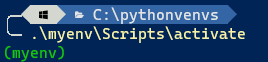
<p>Now open a command prompt like Windows Terminal and create a new folder, for example <code class="language-plaintext highlighter-rouge">C:\pythonvenvs</code>. Navigate to this folder and type <code class="language-plaintext highlighter-rouge">python -m venv myenv</code>. This will create a new virtual environment in the folder <code class="language-plaintext highlighter-rouge">myenv</code>. To activate the virtual environment, navigate to the <code class="language-plaintext highlighter-rouge">Scripts</code> folder and type <code class="language-plaintext highlighter-rouge">activate</code>. Or from the root folder of the virtual environment, type <code class="language-plaintext highlighter-rouge">.\myenv\Scripts\activate</code>. You can check if the virtual environment is activated by checking the command prompt. The name of the virtual environment should be displayed in the prompt.<br />
Note the <code class="language-plaintext highlighter-rouge">activate</code> command is in Windows Terminal with Powershell. If you are making use of a command prompt like DOS then use <code class="language-plaintext highlighter-rouge">activate.bat</code> instead.</p>

<p><img src="/images/myenv_activated_virtual_environment.png" alt="Activated myenv virtual environment" /></p>

<h3 id="deactivating-the-virtual-environment">Deactivating the virtual environment</h3>

<p>To deactivate the virtual environment, simply type <code class="language-plaintext highlighter-rouge">deactivate</code> in the command prompt. This will deactivate the virtual environment and you will return to the global Python installation.</p>

<h3 id="using-the-virtual-environment">Using the virtual environment</h3>

<p>Now that the virtual environment is activated, you can install packages without affecting the rest of the system. For example, you can install the <code class="language-plaintext highlighter-rouge">requests</code> package by typing <code class="language-plaintext highlighter-rouge">pip install requests</code>. This will install the <code class="language-plaintext highlighter-rouge">requests</code> package in the virtual environment. You can check the installed packages by typing <code class="language-plaintext highlighter-rouge">pip list</code>.</p>

<p>Usual packages to install are numpy, pandas and matplotlib. These packages are used for data manipulation and visualization. You can install these packages by typing <code class="language-plaintext highlighter-rouge">pip install numpy pandas matplotlib</code>. Note that if you run a <code class="language-plaintext highlighter-rouge">pip list</code> you will see the installed packages but likely also a bunch of other packages that got installed as dependencies. This is normal and is the result of the package manager installing the packages that are required by the packages you installed.</p>]]></content><author><name>Kris van der Mast</name></author><category term="post" /><category term="python" /><summary type="html"><![CDATA[Intro Python knowns the concept of virtual envirnomnets. A virtual environment is a self-contained directory tree that contains a Python installation for a particular version of Python, plus a number of additional packages. This allows you to have multiple versions of Python installed on your machine and to install packages without affecting the rest of the system. In this post, I will show you how to set up a virtual environment in Python. Why use virtual environments? Why would you care about virtual environments? Well, there are several reasons to do so but I like to use them to keep production code running under a battle tested version of Python and specific versions of packages. When I want to introduce a new or unknown package I simply set up a new virtual environment and install the package. As updating or introducing a new package might have side effects which makes your code break you will be glad you don’t have to spend hours getting things back to work (trust me, I’ve been there). As we will see later on sharing your code on a platform like GitHub will also benefit from using virtual environments, especially when you are working in a team. Installing Python First install a version of Python. I am using version 3.11 at the moment of writing. You can [download Python from the official website][2]. After the installation, you can check if Python is installed by opening a command prompt and typing python --version. This should return the version of Python you installed. In my case it displays Python 3.11.6. It is also possible to install multiple version of Python on your machine. You can use the py command to check which versions are installed. In the same command prompt, type py -0 to see the installed versions. For my local machine the output is: -V:3.11 * Python 3.11 (64-bit) -V:3.9 Python 3.9 (64-bit) The * indicates the default version. Setting up a virtual environment Now open a command prompt like Windows Terminal and create a new folder, for example C:\pythonvenvs. Navigate to this folder and type python -m venv myenv. This will create a new virtual environment in the folder myenv. To activate the virtual environment, navigate to the Scripts folder and type activate. Or from the root folder of the virtual environment, type .\myenv\Scripts\activate. You can check if the virtual environment is activated by checking the command prompt. The name of the virtual environment should be displayed in the prompt. Note the activate command is in Windows Terminal with Powershell. If you are making use of a command prompt like DOS then use activate.bat instead. Deactivating the virtual environment To deactivate the virtual environment, simply type deactivate in the command prompt. This will deactivate the virtual environment and you will return to the global Python installation. Using the virtual environment Now that the virtual environment is activated, you can install packages without affecting the rest of the system. For example, you can install the requests package by typing pip install requests. This will install the requests package in the virtual environment. You can check the installed packages by typing pip list. Usual packages to install are numpy, pandas and matplotlib. These packages are used for data manipulation and visualization. You can install these packages by typing pip install numpy pandas matplotlib. Note that if you run a pip list you will see the installed packages but likely also a bunch of other packages that got installed as dependencies. This is normal and is the result of the package manager installing the packages that are required by the packages you installed.]]></summary></entry><entry><title type="html">Dot NET Conf 2023 sessions online</title><link href="https://www.krisvandermast.com/post/2023/11/18/dot-net-conf-2023-sessions-online.html" rel="alternate" type="text/html" title="Dot NET Conf 2023 sessions online" /><published>2023-11-18T19:26:13+01:00</published><updated>2023-11-18T19:26:13+01:00</updated><id>https://www.krisvandermast.com/post/2023/11/18/dot-net-conf-2023-sessions-online</id><content type="html" xml:base="https://www.krisvandermast.com/post/2023/11/18/dot-net-conf-2023-sessions-online.html"><![CDATA[<p>This week .NET 8 was released and just like last year accompanied by 3 days of conference filled with great sessions and new announcements. The sessions are now available online on the <a href="https://www.dotnetconf.net/">Dot NET Conf 2023 website</a>. Enjoy watching them!</p>

<p>As always, the sessions are available on the <a href="https://www.youtube.com/dotnet">.NET YouTube channel</a> as well.</p>

<p>I took the liberty to list the sessions for easy reference:</p>

<p><a href="https://www.youtube.com/watch?v=ukwFiwKZnpU&amp;list=PLdo4fOcmZ0oULyHSPBx-tQzePOYlhvrAU&amp;index=2&amp;ab_channel=dotnet">.NET Conf 2023 - Keynote Highlights - YouTube</a><br />
<a href="https://www.youtube.com/watch?v=mna5fg7QGz8&amp;list=PLdo4fOcmZ0oULyHSPBx-tQzePOYlhvrAU&amp;index=3&amp;ab_channel=dotnet">.NET Conf 2023 Keynote - Welcome to .NET 8 - YouTube</a><br />
<a href="https://www.youtube.com/watch?v=xEFO1sQ2bUc&amp;list=PLdo4fOcmZ0oULyHSPBx-tQzePOYlhvrAU&amp;index=101&amp;ab_channel=dotnet">.NET Conf 2023 - Day 1 - YouTube</a><br />
<a href="https://www.youtube.com/watch?v=vU-iZcxbDUk&amp;list=PLdo4fOcmZ0oULyHSPBx-tQzePOYlhvrAU&amp;index=102&amp;ab_channel=dotnet">.NET Conf 2023 - Day 2 - YouTube</a><br />
<a href="https://www.youtube.com/watch?v=LuGkxeKut_M&amp;list=PLdo4fOcmZ0oULyHSPBx-tQzePOYlhvrAU&amp;index=103&amp;ab_channel=dotnet">.NET Conf 2023 - Day Two After Hours + Day 3 - YouTube</a><br />
<a href="https://www.youtube.com/watch?v=YwZdtLEtROA&amp;list=PLdo4fOcmZ0oULyHSPBx-tQzePOYlhvrAU&amp;index=4&amp;ab_channel=dotnet">Full stack web UI with Blazor in .NET 8</a><br />
<a href="https://www.youtube.com/watch?v=z1M-7Bms1Jg&amp;list=PLdo4fOcmZ0oULyHSPBx-tQzePOYlhvrAU&amp;index=5&amp;ab_channel=dotnet">Building Cloud Native apps with .NET 8</a><br />
<a href="https://www.youtube.com/watch?v=by-GL-SjHdc&amp;list=PLdo4fOcmZ0oULyHSPBx-tQzePOYlhvrAU&amp;index=6&amp;ab_channel=dotnet">What's New in C# 12</a><br />
<a href="https://www.youtube.com/watch?v=N1weyWS_pL0&amp;list=PLdo4fOcmZ0oULyHSPBx-tQzePOYlhvrAU&amp;index=7&amp;ab_channel=dotnet">What's new with WinForms</a><br />
<a href="https://www.youtube.com/watch?v=yF9SwL0p0Y0&amp;list=PLdo4fOcmZ0oULyHSPBx-tQzePOYlhvrAU&amp;index=8&amp;ab_channel=dotnet">Clean Architecture with ASP.NET Core 8</a><br />
<a href="https://www.youtube.com/watch?v=c__Sf9j_Q2Y&amp;list=PLdo4fOcmZ0oULyHSPBx-tQzePOYlhvrAU&amp;index=9&amp;ab_channel=dotnet">ASP.NET Core Authentication Simplified</a><br />
<a href="https://www.youtube.com/watch?v=_8iH5QnkIJo&amp;list=PLdo4fOcmZ0oULyHSPBx-tQzePOYlhvrAU&amp;index=10&amp;ab_channel=dotnet">Entity Framework Core 8: Improved JSON, queryable collections , and more…</a><br />
<a href="https://www.youtube.com/watch?v=a0xOqNemRoY&amp;list=PLdo4fOcmZ0oULyHSPBx-tQzePOYlhvrAU&amp;index=11&amp;ab_channel=dotnet">Unlocking the power of the Fluent UI Blazor components</a><br />
<a href="https://www.youtube.com/watch?v=Yf8t7GqA6zA&amp;list=PLdo4fOcmZ0oULyHSPBx-tQzePOYlhvrAU&amp;index=12&amp;ab_channel=dotnet">All About C# Source Generators</a><br />
<a href="https://www.youtube.com/watch?v=QIdedo8iI4Y&amp;list=PLdo4fOcmZ0oULyHSPBx-tQzePOYlhvrAU&amp;index=13&amp;ab_channel=dotnet">Building beautiful Blazor apps with Tailwind CSS</a><br />
<a href="https://www.youtube.com/watch?v=4saU9BNY6l4&amp;list=PLdo4fOcmZ0oULyHSPBx-tQzePOYlhvrAU&amp;index=14&amp;ab_channel=dotnet">What’s New in .NET MAUI</a><br />
<a href="https://www.youtube.com/watch?v=scIAwLrruMY&amp;list=PLdo4fOcmZ0oULyHSPBx-tQzePOYlhvrAU&amp;index=15&amp;ab_channel=dotnet">.NET Containers advancements in .NET 8</a><br />
<a href="https://www.youtube.com/watch?v=aOXaBZFB0-0&amp;list=PLdo4fOcmZ0oULyHSPBx-tQzePOYlhvrAU&amp;index=16&amp;ab_channel=dotnet">.NET Configuration In Depth</a><br />
<a href="https://www.youtube.com/watch?v=nsSNVZF8NYo&amp;list=PLdo4fOcmZ0oULyHSPBx-tQzePOYlhvrAU&amp;index=17&amp;ab_channel=dotnet">GitHub Copilot Tips for .NET Developers</a><br />
<a href="https://www.youtube.com/watch?v=T-EwN9UqRwE&amp;list=PLdo4fOcmZ0oULyHSPBx-tQzePOYlhvrAU&amp;index=18&amp;ab_channel=dotnet">Vertical Slice Architecture: How Does it Compare to Clean Architecture</a><br />
<a href="https://www.youtube.com/watch?v=9PZVjcp3Xxc&amp;list=PLdo4fOcmZ0oULyHSPBx-tQzePOYlhvrAU&amp;index=19&amp;ab_channel=dotnet">Unleashing the Power of Cross-Platform Development with Avalonia UI</a><br />
<a href="https://www.youtube.com/watch?v=7Et6ooq4oyI&amp;list=PLdo4fOcmZ0oULyHSPBx-tQzePOYlhvrAU&amp;index=20&amp;ab_channel=dotnet">What's new in System.Text.Json</a><br />
<a href="https://www.youtube.com/watch?v=FpQXyFoZ9aY&amp;list=PLdo4fOcmZ0oULyHSPBx-tQzePOYlhvrAU&amp;index=21&amp;ab_channel=dotnet">Tiny, fast ASP.NET Core APIs with native AOT</a><br />
<a href="https://www.youtube.com/watch?v=YiOkz1x2qaE&amp;list=PLdo4fOcmZ0oULyHSPBx-tQzePOYlhvrAU&amp;index=22&amp;ab_channel=dotnet">Performance Improvements in .NET 8, ASP.NET Core, and .NET MAUI</a><br />
<a href="https://www.youtube.com/watch?v=BnjHArsYGLM&amp;list=PLdo4fOcmZ0oULyHSPBx-tQzePOYlhvrAU&amp;index=23&amp;ab_channel=dotnet">Improving your application telemetry using .NET 8 and Open Telemetry</a><br />
<a href="https://www.youtube.com/watch?v=GDCMiBu_2gI&amp;list=PLdo4fOcmZ0oULyHSPBx-tQzePOYlhvrAU&amp;index=24&amp;ab_channel=dotnet">ASP.NET Basics for Experts</a><br />
<a href="https://www.youtube.com/watch?v=A_PfDjcWIeA&amp;list=PLdo4fOcmZ0oULyHSPBx-tQzePOYlhvrAU&amp;index=25&amp;ab_channel=dotnet">.NET 💖 AI</a><br />
<a href="https://www.youtube.com/watch?v=KousO1UsHYM&amp;list=PLdo4fOcmZ0oULyHSPBx-tQzePOYlhvrAU&amp;index=26&amp;ab_channel=dotnet">CQRS with Event Sourcing using the “Critter Stack”</a><br />
<a href="https://www.youtube.com/watch?v=AV3e8kS6roA&amp;list=PLdo4fOcmZ0oULyHSPBx-tQzePOYlhvrAU&amp;index=27&amp;ab_channel=dotnet">Introducing Grial Studio for .NET MAUI</a><br />
<a href="https://www.youtube.com/watch?v=Wo_75Yinhw8&amp;list=PLdo4fOcmZ0oULyHSPBx-tQzePOYlhvrAU&amp;index=28&amp;ab_channel=dotnet">Building next-gen applications with event-driven architectures</a><br />
<a href="https://www.youtube.com/watch?v=fVkA1AHd37M&amp;list=PLdo4fOcmZ0oULyHSPBx-tQzePOYlhvrAU&amp;index=29&amp;ab_channel=dotnet">Use C# with Godot to make Games!</a><br />
<a href="https://www.youtube.com/watch?v=P8y8NAroVKk&amp;list=PLdo4fOcmZ0oULyHSPBx-tQzePOYlhvrAU&amp;index=30&amp;ab_channel=dotnet">Reverse proxying is easy with YARP</a><br />
<a href="https://www.youtube.com/watch?v=hLjqf4PmG9E&amp;list=PLdo4fOcmZ0oULyHSPBx-tQzePOYlhvrAU&amp;index=31&amp;ab_channel=dotnet">Modernizing Rx.NET</a><br />
<a href="https://www.youtube.com/watch?v=u30XwO9-10Q&amp;list=PLdo4fOcmZ0oULyHSPBx-tQzePOYlhvrAU&amp;index=32&amp;ab_channel=dotnet">Build hybrid apps with .NET MAUI</a><br />
<a href="https://www.youtube.com/watch?v=H1LlRUqj9U4&amp;list=PLdo4fOcmZ0oULyHSPBx-tQzePOYlhvrAU&amp;index=33&amp;ab_channel=dotnet">.NET is the best backend for your JavaScript frontend</a><br />
<a href="https://www.youtube.com/watch?v=u38Qb0Eay28&amp;list=PLdo4fOcmZ0oULyHSPBx-tQzePOYlhvrAU&amp;index=34&amp;ab_channel=dotnet">What's New in NuGet for .NET 8</a><br />
<a href="https://www.youtube.com/watch?v=xZk8T-9kI3w&amp;list=PLdo4fOcmZ0oULyHSPBx-tQzePOYlhvrAU&amp;index=35&amp;ab_channel=dotnet">Everyday C# - A blend of modern and time tested features</a><br />
<a href="https://www.youtube.com/watch?v=Ci-FTnC-j84&amp;list=PLdo4fOcmZ0oULyHSPBx-tQzePOYlhvrAU&amp;index=36&amp;ab_channel=dotnet">Let’s catch up with C#! Exciting new features in C# 9, 10, 11 and 12!</a><br />
<a href="https://www.youtube.com/watch?v=Ki4Wv-neAsw&amp;list=PLdo4fOcmZ0oULyHSPBx-tQzePOYlhvrAU&amp;index=37&amp;ab_channel=dotnet">Visual Studio Updates for .NET Devs</a><br />
<a href="https://www.youtube.com/watch?v=P1qhEBcN7bc&amp;list=PLdo4fOcmZ0oULyHSPBx-tQzePOYlhvrAU&amp;index=38&amp;ab_channel=dotnet">Unleashing Cross-Platform Magic in .NET 8: Creating .NET MAUI Apps on Linux with Visual Studio Code</a><br />
<a href="https://www.youtube.com/watch?v=EgftgnNz-lA&amp;list=PLdo4fOcmZ0oULyHSPBx-tQzePOYlhvrAU&amp;index=39&amp;ab_channel=dotnet">Uno Platform 5.0: Elevate Your Cross-Platform .NET Development with .NET 8</a><br />
<a href="https://www.youtube.com/watch?v=F_xe0TvXGu0&amp;list=PLdo4fOcmZ0oULyHSPBx-tQzePOYlhvrAU&amp;index=40&amp;ab_channel=dotnet">Packing light with VS Code and the C# Dev Kit</a><br />
<a href="https://www.youtube.com/watch?v=sD_-XwauabE&amp;list=PLdo4fOcmZ0oULyHSPBx-tQzePOYlhvrAU&amp;index=41&amp;ab_channel=dotnet">Concurrent Hosted Service in .NET 8</a><br />
<a href="https://www.youtube.com/watch?v=Bnszrmve5tg&amp;list=PLdo4fOcmZ0oULyHSPBx-tQzePOYlhvrAU&amp;index=42&amp;ab_channel=dotnet">AI for .NET with Semantic Kernel</a><br />
<a href="https://www.youtube.com/watch?v=3uWeyEbV4c4&amp;list=PLdo4fOcmZ0oULyHSPBx-tQzePOYlhvrAU&amp;index=43&amp;ab_channel=dotnet">Building Multi-Tenant ASP.NET Core Applications and ABP Framework</a><br />
<a href="https://www.youtube.com/watch?v=fYJuokUnucE&amp;list=PLdo4fOcmZ0oULyHSPBx-tQzePOYlhvrAU&amp;index=44&amp;ab_channel=dotnet">Build an Azure OpenAI powered .NET 8 Chat Bot on your data from scratch</a><br />
<a href="https://www.youtube.com/watch?v=mSBsWBKh1-k&amp;list=PLdo4fOcmZ0oULyHSPBx-tQzePOYlhvrAU&amp;index=45&amp;ab_channel=dotnet">Hardware Intrinsics in .NET</a><br />
<a href="https://www.youtube.com/watch?v=QGNGT9EW9UA&amp;list=PLdo4fOcmZ0oULyHSPBx-tQzePOYlhvrAU&amp;index=46&amp;ab_channel=dotnet">Learning C# and .NET with freeCodeCamp!</a><br />
<a href="https://www.youtube.com/watch?v=o4gMJfee4iA&amp;list=PLdo4fOcmZ0oULyHSPBx-tQzePOYlhvrAU&amp;index=47&amp;ab_channel=dotnet">Azure API Center and ASP.NET Web API Integration: A Developer's Guide</a><br />
<a href="https://www.youtube.com/watch?v=eWjtKwRIc54&amp;list=PLdo4fOcmZ0oULyHSPBx-tQzePOYlhvrAU&amp;index=48&amp;ab_channel=dotnet">In .NET 8, ASP.NET Ate</a><br />
<a href="https://www.youtube.com/watch?v=vWAXrP69QX4&amp;list=PLdo4fOcmZ0oULyHSPBx-tQzePOYlhvrAU&amp;index=49&amp;ab_channel=dotnet">Building 3D apps with Net MAUI and Evergine</a><br />
<a href="https://www.youtube.com/watch?v=WrpYcGic9b8&amp;list=PLdo4fOcmZ0oULyHSPBx-tQzePOYlhvrAU&amp;index=50&amp;ab_channel=dotnet">Dynamic PGO</a><br />
<a href="https://www.youtube.com/watch?v=PattkMhmnzE&amp;list=PLdo4fOcmZ0oULyHSPBx-tQzePOYlhvrAU&amp;index=51&amp;ab_channel=dotnet">Build .NET MAUI Apps with DevOps</a><br />
<a href="https://www.youtube.com/watch?v=yc0Zl_UXCY4&amp;list=PLdo4fOcmZ0oULyHSPBx-tQzePOYlhvrAU&amp;index=52&amp;ab_channel=dotnet">Generative AI for the .NET Developer</a><br />
<a href="https://www.youtube.com/watch?v=sQ9Pv-rQ1s8&amp;list=PLdo4fOcmZ0oULyHSPBx-tQzePOYlhvrAU&amp;index=53&amp;ab_channel=dotnet">Introducing project Kiota a client generator for OpenAPI</a><br />
<a href="https://www.youtube.com/watch?v=f6GcKCKASeg&amp;list=PLdo4fOcmZ0oULyHSPBx-tQzePOYlhvrAU&amp;index=54&amp;ab_channel=dotnet">From databases to API: an efficient solution both on-premises and in Azure</a><br />
<a href="https://www.youtube.com/watch?v=BDZpuFI8mMM&amp;list=PLdo4fOcmZ0oULyHSPBx-tQzePOYlhvrAU&amp;index=55&amp;ab_channel=dotnet">Building resilient cloud services with .NET 8</a><br />
<a href="https://www.youtube.com/watch?v=zVOAkBMnH5g&amp;list=PLdo4fOcmZ0oULyHSPBx-tQzePOYlhvrAU&amp;index=56&amp;ab_channel=dotnet">CoreWCF - It's not just for modernizing old WCF apps</a><br />
<a href="https://www.youtube.com/watch?v=reABzYvzGes&amp;list=PLdo4fOcmZ0oULyHSPBx-tQzePOYlhvrAU&amp;index=57&amp;ab_channel=dotnet">Mobile Application Development with C# only: Unifying Markup and Business Logic</a><br />
<a href="https://www.youtube.com/watch?v=DZd1SGd7dSU&amp;list=PLdo4fOcmZ0oULyHSPBx-tQzePOYlhvrAU&amp;index=58&amp;ab_channel=dotnet">COM Source Generation: An evolution of COM interop in .NET</a><br />
<a href="https://www.youtube.com/watch?v=hVdgRw68GHM&amp;list=PLdo4fOcmZ0oULyHSPBx-tQzePOYlhvrAU&amp;index=59&amp;ab_channel=dotnet">Improve your ASP.NET core web app performance using Azure Cache for Redis</a><br />
<a href="https://www.youtube.com/watch?v=-3SrUqjq9Ic&amp;list=PLdo4fOcmZ0oULyHSPBx-tQzePOYlhvrAU&amp;index=60&amp;ab_channel=dotnet">Build Intelligent Apps with .NET and Azure</a><br />
<a href="https://www.youtube.com/watch?v=yhwunQ6XQCg&amp;list=PLdo4fOcmZ0oULyHSPBx-tQzePOYlhvrAU&amp;index=61&amp;ab_channel=dotnet">Bye ASP.NET WebForm, Welcome Blazor: Transform your ASP.NET WebForm Chatbot in no time, and beyond!</a><br />
<a href="https://www.youtube.com/watch?v=dE-XCUVCkkE&amp;list=PLdo4fOcmZ0oULyHSPBx-tQzePOYlhvrAU&amp;index=62&amp;ab_channel=dotnet">Integrating Blazor with existing .NET web apps</a><br />
<a href="https://www.youtube.com/watch?v=wadfRRrEOh4&amp;list=PLdo4fOcmZ0oULyHSPBx-tQzePOYlhvrAU&amp;index=63&amp;ab_channel=dotnet">Experimental C# Interceptors: AOT &amp; Performance for free</a><br />
<a href="https://www.youtube.com/watch?v=XzD-95qfWJM&amp;list=PLdo4fOcmZ0oULyHSPBx-tQzePOYlhvrAU&amp;index=64&amp;ab_channel=dotnet">Make a template for your template; profit!</a><br />
<a href="https://www.youtube.com/watch?v=r8fVjPqpVkA&amp;list=PLdo4fOcmZ0oULyHSPBx-tQzePOYlhvrAU&amp;index=65&amp;ab_channel=dotnet">Understanding Role-Based Access Control with ASP.NET Web APIs</a><br />
<a href="https://www.youtube.com/watch?v=2cksH4FBizo&amp;list=PLdo4fOcmZ0oULyHSPBx-tQzePOYlhvrAU&amp;index=66&amp;ab_channel=dotnet">How to build a story generator application for children with NET MAUI and Microsoft Azure</a><br />
<a href="https://www.youtube.com/watch?v=JwGdMrmdtNo&amp;list=PLdo4fOcmZ0oULyHSPBx-tQzePOYlhvrAU&amp;index=66&amp;pp=iAQB&quot;">App Service the best place to host your .NET 8 Web Apps</a><br />
<a href="https://www.youtube.com/watch?v=i0EFuRF2u-w&amp;list=PLdo4fOcmZ0oULyHSPBx-tQzePOYlhvrAU&amp;index=68&amp;ab_channel=dotnet">Reactive programming with .NET MAUI | .NET Conf 2023</a><br />
<a href="https://www.youtube.com/watch?v=Jk5nN6tRlCc&amp;list=PLdo4fOcmZ0oULyHSPBx-tQzePOYlhvrAU&amp;index=69&amp;ab_channel=dotnet">Leveraging the power of the .NET platform in Azure Functions</a><br />
<a href="https://www.youtube.com/watch?v=_2x5IQU8COY&amp;list=PLdo4fOcmZ0oULyHSPBx-tQzePOYlhvrAU&amp;index=70&amp;ab_channel=dotnet">Building and scaling cloud-native, intelligent applications on Azure and .NET</a><br />
<a href="https://www.youtube.com/watch?v=i1X8J2ge0Wo&amp;list=PLdo4fOcmZ0oULyHSPBx-tQzePOYlhvrAU&amp;index=71&amp;ab_channel=dotnet">Building planet scale .NET apps with Azure Cosmos DB</a><br />
<a href="https://www.youtube.com/watch?v=aorfcDeHUpw&amp;list=PLdo4fOcmZ0oULyHSPBx-tQzePOYlhvrAU&amp;index=72&amp;ab_channel=dotnet">Blazor-testing from A to Z</a><br />
<a href="https://www.youtube.com/watch?v=fwR59ep-2-8&amp;list=PLdo4fOcmZ0oULyHSPBx-tQzePOYlhvrAU&amp;index=73&amp;ab_channel=dotnet">EF Core database model first - take it to the next level with Power Tools CLI</a><br />
<a href="https://www.youtube.com/watch?v=X7VmmVLtI7c&amp;list=PLdo4fOcmZ0oULyHSPBx-tQzePOYlhvrAU&amp;index=74&amp;ab_channel=dotnet">Integrating Third-party Services with .NET 8's Identity Framework</a><br />
<a href="https://www.youtube.com/watch?v=zwkspYxtFAE&amp;list=PLdo4fOcmZ0oULyHSPBx-tQzePOYlhvrAU&amp;index=75&amp;ab_channel=dotnet">It's C# All The Way Down! Using .NET for home automation with IoT devices</a><br />
<a href="https://www.youtube.com/watch?v=yVYhZsu7gso&amp;list=PLdo4fOcmZ0oULyHSPBx-tQzePOYlhvrAU&amp;index=76&amp;ab_channel=dotnet">Best Practices for Cross-Platform .NET 8 Applications</a><br />
<a href="https://www.youtube.com/watch?v=Rd73zT7gpD8&amp;list=PLdo4fOcmZ0oULyHSPBx-tQzePOYlhvrAU&amp;index=77&amp;ab_channel=dotnet">Two ways of migrating old ASP.NET web apps to .NET 7/8</a><br />
<a href="https://www.youtube.com/watch?v=awbXa4FoNqo&amp;list=PLdo4fOcmZ0oULyHSPBx-tQzePOYlhvrAU&amp;index=78&amp;ab_channel=dotnet">Migrating .NET applications to Azure</a><br />
<a href="https://www.youtube.com/watch?v=0_yZinJAn7U&amp;list=PLdo4fOcmZ0oULyHSPBx-tQzePOYlhvrAU&amp;index=79&amp;ab_channel=dotnet">Migrating a React Application to Blazor</a><br />
<a href="https://www.youtube.com/watch?v=U_UbMKSa6D0&amp;list=PLdo4fOcmZ0oULyHSPBx-tQzePOYlhvrAU&amp;index=80&amp;ab_channel=dotnet">What's new in F# 8</a><br />
<a href="https://www.youtube.com/watch?v=9AGaqvKL6jk&amp;list=PLdo4fOcmZ0oULyHSPBx-tQzePOYlhvrAU&amp;index=81&amp;ab_channel=dotnet">Learn how to improve .NET application performance leveraging Azure Code Optimizations</a><br />
<a href="https://www.youtube.com/watch?v=O2dTN7cciAM&amp;list=PLdo4fOcmZ0oULyHSPBx-tQzePOYlhvrAU&amp;index=82&amp;ab_channel=dotnet">Design UI agnostic cross-platform applications with .NET</a><br />
<a href="https://www.youtube.com/watch?v=1xF4L4xCVqo&amp;list=PLdo4fOcmZ0oULyHSPBx-tQzePOYlhvrAU&amp;index=83&amp;ab_channel=dotnet">How Amateur Devs &amp; Infrastructure Engineers Built a Million-Dollar App</a><br />
<a href="https://www.youtube.com/watch?v=BkfHP3yEAEM&amp;list=PLdo4fOcmZ0oULyHSPBx-tQzePOYlhvrAU&amp;index=84&amp;ab_channel=dotnet">Monitoring of Containerized NET Applications in Azure</a><br />
<a href="https://www.youtube.com/watch?v=fxGEVS2Gcyo&amp;list=PLdo4fOcmZ0oULyHSPBx-tQzePOYlhvrAU&amp;index=85&amp;ab_channel=dotnet">Blazor Puzzles and Answers</a><br />
<a href="https://www.youtube.com/watch?v=pusw2JpcCDw&amp;list=PLdo4fOcmZ0oULyHSPBx-tQzePOYlhvrAU&amp;index=86&amp;ab_channel=dotnet">From Zero to Hero: Quickly Migrate Web Apps with Azure App Service</a><br />
<a href="https://www.youtube.com/watch?v=E6sEr3OrwgA&amp;list=PLdo4fOcmZ0oULyHSPBx-tQzePOYlhvrAU&amp;index=87&amp;ab_channel=dotnet">Building generative AI powered bots with Teams Toolkit and AI library for .NET</a><br />
<a href="https://www.youtube.com/watch?v=T5j4kEuA_m8&amp;list=PLdo4fOcmZ0oULyHSPBx-tQzePOYlhvrAU&amp;index=88&amp;ab_channel=dotnet">Community Toolkit Roundup</a><br />
<a href="https://www.youtube.com/watch?v=P1miQ0cjlwc&amp;list=PLdo4fOcmZ0oULyHSPBx-tQzePOYlhvrAU&amp;index=89&amp;ab_channel=dotnet">To the cloud with minimal changes: A pattern to make your app reliable</a><br />
<a href="https://www.youtube.com/watch?v=lBFlNjRbMsk&amp;list=PLdo4fOcmZ0oULyHSPBx-tQzePOYlhvrAU&amp;index=90&amp;ab_channel=dotnet">Spatial Data with Entity Framework Core and .NET MAUI</a><br />
<a href="https://www.youtube.com/watch?v=EzVcVDIbHYU&amp;list=PLdo4fOcmZ0oULyHSPBx-tQzePOYlhvrAU&amp;index=91&amp;ab_channel=dotnet">How to Achieve Optimistic Updates with Blazor and EF Core</a><br />
<a href="https://www.youtube.com/watch?v=svYY7YplnH0&amp;list=PLdo4fOcmZ0oULyHSPBx-tQzePOYlhvrAU&amp;index=92&amp;ab_channel=dotnet">Create an enterprise Copilot extension for Visual Studio Code through Semantic Kernel</a><br />
<a href="https://www.youtube.com/watch?v=VSZvgnQGO3Y&amp;list=PLdo4fOcmZ0oULyHSPBx-tQzePOYlhvrAU&amp;index=93&amp;ab_channel=dotnet">Lessons from a data science startup using F# and dotnet in a developing country</a><br />
<a href="https://www.youtube.com/watch?v=qXsRz0YWvu4&amp;list=PLdo4fOcmZ0oULyHSPBx-tQzePOYlhvrAU&amp;index=94&amp;ab_channel=dotnet">From IL Weaving to Source Generators, the Realm story</a><br />
<a href="https://www.youtube.com/watch?v=xsnAGIHGDvM&amp;list=PLdo4fOcmZ0oULyHSPBx-tQzePOYlhvrAU&amp;index=95&amp;ab_channel=dotnet">Cloud-Bound: Stack Overflow Teams Embraces Azure</a><br />
<a href="https://www.youtube.com/watch?v=erRhiampIFo&amp;list=PLdo4fOcmZ0oULyHSPBx-tQzePOYlhvrAU&amp;index=96&amp;ab_channel=dotnet">.NET App modernization and cloud migration: Cross Platform Enterprise focus</a><br />
<a href="https://www.youtube.com/watch?v=bCq8cmn_ht8&amp;list=PLdo4fOcmZ0oULyHSPBx-tQzePOYlhvrAU&amp;index=97&amp;ab_channel=dotnet">Visual Studio updates for F#</a><br />
<a href="https://www.youtube.com/watch?v=dvOKC_H_Ajo&amp;list=PLdo4fOcmZ0oULyHSPBx-tQzePOYlhvrAU&amp;index=98&amp;ab_channel=dotnet">Meadow.Cloud and Azure, putting the “I” in IoT</a><br />
<a href="https://www.youtube.com/watch?v=SZ5XMUm-Hd8&amp;list=PLdo4fOcmZ0oULyHSPBx-tQzePOYlhvrAU&amp;index=99&amp;ab_channel=dotnet">We are not just a .NET Community, we run our community on .NET</a><br />
<a href="https://www.youtube.com/watch?v=4zKSSK8BdN8&amp;list=PLdo4fOcmZ0oULyHSPBx-tQzePOYlhvrAU&amp;index=100&amp;ab_channel=dotnet">Using .NET and Azure to build a green supercomputer for Vestas</a></p>

<p>Enjoy watching them!</p>]]></content><author><name>Kris van der Mast</name></author><category term="post" /><category term="dotnet" /><summary type="html"><![CDATA[This week .NET 8 was released and just like last year accompanied by 3 days of conference filled with great sessions and new announcements. The sessions are now available online on the Dot NET Conf 2023 website. Enjoy watching them! As always, the sessions are available on the .NET YouTube channel as well. I took the liberty to list the sessions for easy reference: .NET Conf 2023 - Keynote Highlights - YouTube .NET Conf 2023 Keynote - Welcome to .NET 8 - YouTube .NET Conf 2023 - Day 1 - YouTube .NET Conf 2023 - Day 2 - YouTube .NET Conf 2023 - Day Two After Hours + Day 3 - YouTube Full stack web UI with Blazor in .NET 8 Building Cloud Native apps with .NET 8 What's New in C# 12 What's new with WinForms Clean Architecture with ASP.NET Core 8 ASP.NET Core Authentication Simplified Entity Framework Core 8: Improved JSON, queryable collections , and more… Unlocking the power of the Fluent UI Blazor components All About C# Source Generators Building beautiful Blazor apps with Tailwind CSS What’s New in .NET MAUI .NET Containers advancements in .NET 8 .NET Configuration In Depth GitHub Copilot Tips for .NET Developers Vertical Slice Architecture: How Does it Compare to Clean Architecture Unleashing the Power of Cross-Platform Development with Avalonia UI What's new in System.Text.Json Tiny, fast ASP.NET Core APIs with native AOT Performance Improvements in .NET 8, ASP.NET Core, and .NET MAUI Improving your application telemetry using .NET 8 and Open Telemetry ASP.NET Basics for Experts .NET 💖 AI CQRS with Event Sourcing using the “Critter Stack” Introducing Grial Studio for .NET MAUI Building next-gen applications with event-driven architectures Use C# with Godot to make Games! Reverse proxying is easy with YARP Modernizing Rx.NET Build hybrid apps with .NET MAUI .NET is the best backend for your JavaScript frontend What's New in NuGet for .NET 8 Everyday C# - A blend of modern and time tested features Let’s catch up with C#! Exciting new features in C# 9, 10, 11 and 12! Visual Studio Updates for .NET Devs Unleashing Cross-Platform Magic in .NET 8: Creating .NET MAUI Apps on Linux with Visual Studio Code Uno Platform 5.0: Elevate Your Cross-Platform .NET Development with .NET 8 Packing light with VS Code and the C# Dev Kit Concurrent Hosted Service in .NET 8 AI for .NET with Semantic Kernel Building Multi-Tenant ASP.NET Core Applications and ABP Framework Build an Azure OpenAI powered .NET 8 Chat Bot on your data from scratch Hardware Intrinsics in .NET Learning C# and .NET with freeCodeCamp! Azure API Center and ASP.NET Web API Integration: A Developer's Guide In .NET 8, ASP.NET Ate Building 3D apps with Net MAUI and Evergine Dynamic PGO Build .NET MAUI Apps with DevOps Generative AI for the .NET Developer Introducing project Kiota a client generator for OpenAPI From databases to API: an efficient solution both on-premises and in Azure Building resilient cloud services with .NET 8 CoreWCF - It's not just for modernizing old WCF apps Mobile Application Development with C# only: Unifying Markup and Business Logic COM Source Generation: An evolution of COM interop in .NET Improve your ASP.NET core web app performance using Azure Cache for Redis Build Intelligent Apps with .NET and Azure Bye ASP.NET WebForm, Welcome Blazor: Transform your ASP.NET WebForm Chatbot in no time, and beyond! Integrating Blazor with existing .NET web apps Experimental C# Interceptors: AOT &amp; Performance for free Make a template for your template; profit! Understanding Role-Based Access Control with ASP.NET Web APIs How to build a story generator application for children with NET MAUI and Microsoft Azure App Service the best place to host your .NET 8 Web Apps Reactive programming with .NET MAUI | .NET Conf 2023 Leveraging the power of the .NET platform in Azure Functions Building and scaling cloud-native, intelligent applications on Azure and .NET Building planet scale .NET apps with Azure Cosmos DB Blazor-testing from A to Z EF Core database model first - take it to the next level with Power Tools CLI Integrating Third-party Services with .NET 8's Identity Framework It's C# All The Way Down! Using .NET for home automation with IoT devices Best Practices for Cross-Platform .NET 8 Applications Two ways of migrating old ASP.NET web apps to .NET 7/8 Migrating .NET applications to Azure Migrating a React Application to Blazor What's new in F# 8 Learn how to improve .NET application performance leveraging Azure Code Optimizations Design UI agnostic cross-platform applications with .NET How Amateur Devs &amp; Infrastructure Engineers Built a Million-Dollar App Monitoring of Containerized NET Applications in Azure Blazor Puzzles and Answers From Zero to Hero: Quickly Migrate Web Apps with Azure App Service Building generative AI powered bots with Teams Toolkit and AI library for .NET Community Toolkit Roundup To the cloud with minimal changes: A pattern to make your app reliable Spatial Data with Entity Framework Core and .NET MAUI How to Achieve Optimistic Updates with Blazor and EF Core Create an enterprise Copilot extension for Visual Studio Code through Semantic Kernel Lessons from a data science startup using F# and dotnet in a developing country From IL Weaving to Source Generators, the Realm story Cloud-Bound: Stack Overflow Teams Embraces Azure .NET App modernization and cloud migration: Cross Platform Enterprise focus Visual Studio updates for F# Meadow.Cloud and Azure, putting the “I” in IoT We are not just a .NET Community, we run our community on .NET Using .NET and Azure to build a green supercomputer for Vestas Enjoy watching them!]]></summary></entry><entry><title type="html">Make use of colored braces in Visual Studio</title><link href="https://www.krisvandermast.com/post/2023/10/03/make-use-of-colored-braces-in-visual-studio.html" rel="alternate" type="text/html" title="Make use of colored braces in Visual Studio" /><published>2023-10-03T18:15:03+02:00</published><updated>2023-10-03T18:15:03+02:00</updated><id>https://www.krisvandermast.com/post/2023/10/03/make-use-of-colored-braces-in-visual-studio</id><content type="html" xml:base="https://www.krisvandermast.com/post/2023/10/03/make-use-of-colored-braces-in-visual-studio.html"><![CDATA[<p>I have always been a fan of extensions that make my life easier. One of those extensions was the <a href="https://marketplace.visualstudio.com/items?itemName=MadsKristensen.RainbowBraces">Rainbow braces extension by Mads Kristensen</a>. This extension colors the braces in your code. This makes it easier to see where a block starts and ends. Especially when you have a lot of nested blocks like when writing Linq queries.</p>

<p>It seems many people liked the extension so Microsoft decided a while ago to integrate it into Visual Studio. The only thing you need to do is enable it.</p>

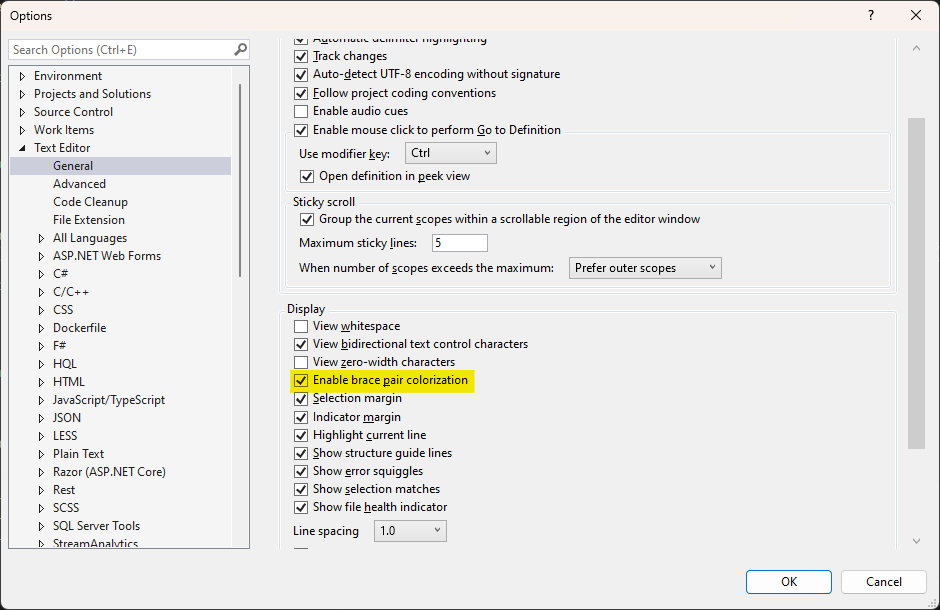
<p>You can either enable it by going to <code class="language-plaintext highlighter-rouge">Tools</code> &gt; <code class="language-plaintext highlighter-rouge">Options</code> &gt; <code class="language-plaintext highlighter-rouge">Environment</code> &gt; <code class="language-plaintext highlighter-rouge">Text Editor</code> and then select <code class="language-plaintext highlighter-rouge">Enable brace pair colorization</code>. Another way to get to it is by using the keyboard combination <kbd>ctrl</kbd> + <kbd>q</kbd> and then type <code class="language-plaintext highlighter-rouge">brace pair colorization</code>. It will land you on the same option:</p>

<p><img src="/images/enable_brace_pair_colorization.png" alt="Enable brace pair colorization" /></p>

<p>Of course you want to see some results so here is a screenshot of the same code with and without brace pair colorization:</p>

<p>Without brace pair colorization:</p>

<p><img src="/images/colored_braces_disabled.png" alt="without brace pair colorization" /></p>

<p>With brace pair colorization:</p>

<p><img src="/images/colored_braces_enabled.png" alt="with brace pair colorization" /></p>

<p>Personally I like the colored braces. It makes it easier to see where a block starts and ends.</p>]]></content><author><name>Kris van der Mast</name></author><category term="post" /><category term="visual studio" /><summary type="html"><![CDATA[I have always been a fan of extensions that make my life easier. One of those extensions was the Rainbow braces extension by Mads Kristensen. This extension colors the braces in your code. This makes it easier to see where a block starts and ends. Especially when you have a lot of nested blocks like when writing Linq queries.]]></summary></entry><entry><title type="html">Booth duty at Microsoft Build Netherlands 2023</title><link href="https://www.krisvandermast.com/post/2023/09/27/booth-duty-at-microsoft-build-netherlands-2023.html" rel="alternate" type="text/html" title="Booth duty at Microsoft Build Netherlands 2023" /><published>2023-09-27T19:13:57+02:00</published><updated>2023-09-27T19:13:57+02:00</updated><id>https://www.krisvandermast.com/post/2023/09/27/booth-duty-at-microsoft-build-netherlands-2023</id><content type="html" xml:base="https://www.krisvandermast.com/post/2023/09/27/booth-duty-at-microsoft-build-netherlands-2023.html"><![CDATA[<p>Just came back from Utrecht Netherlands where I helped out at the <a href="https://globalai.community/">Global AI</a> booth at <a href="https://msevents.microsoft.com/event?id=53725391">Microsoft Build Netherlands 2023</a>. It was a great experience to talk to people about AI and how it can help them in their daily lives. I also got to meet some of the other Global AI ambassadors and it was great to see how they are helping to spread the word about AI.</p>

<p>Not only that but I also got into the contact with the ladies of <em><a href="https://www.dutchwomenintech.com/">Dutch women in tech</a></em>. When I heard about what they’re trying to accomplish I immediately wanted to help them out and got them into contact with the Belgian group <em><a href="https://clusity.be/">Clusity</a></em>. Hopefully something nice will come out of that.</p>

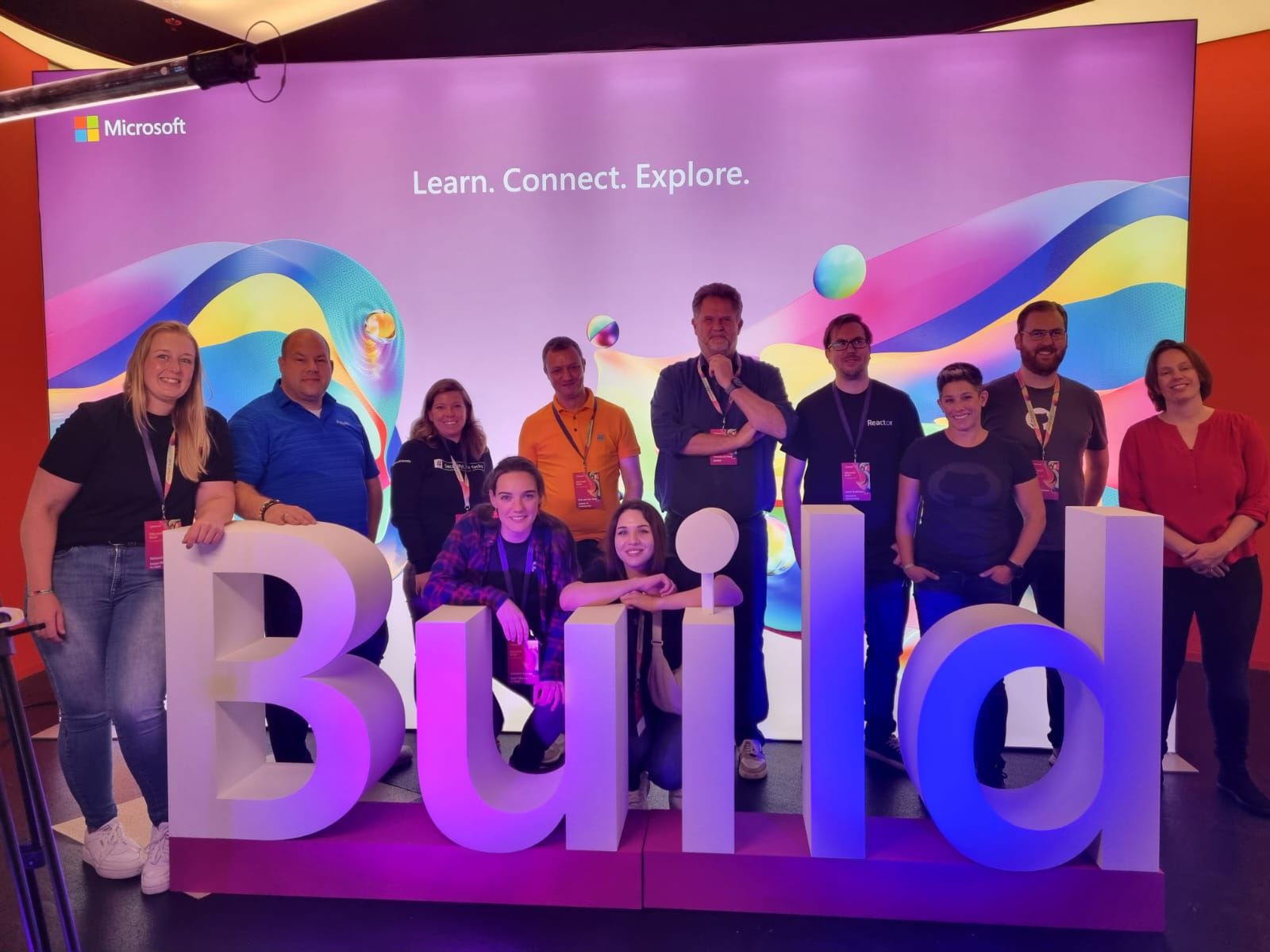
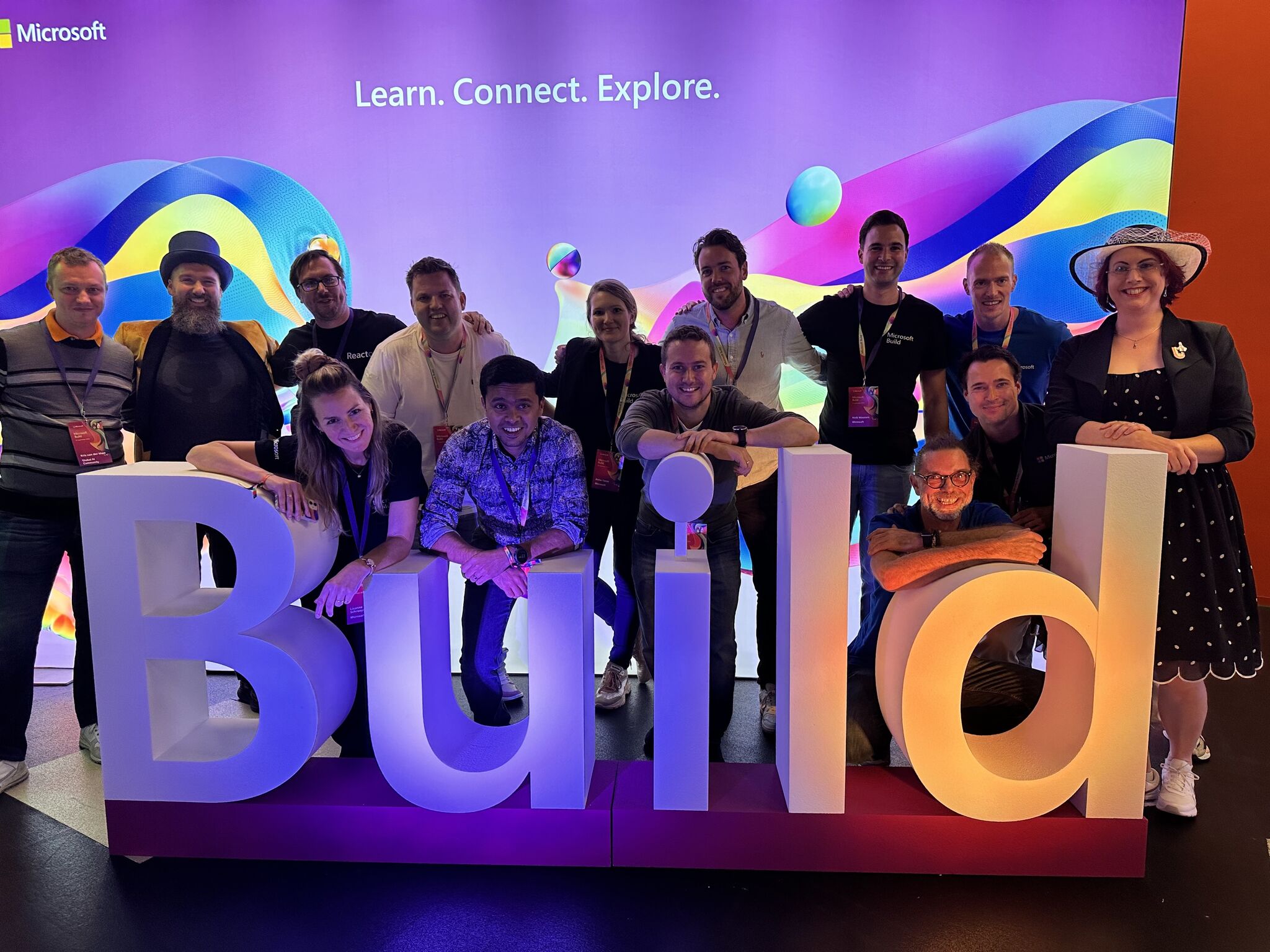
<p>Of course we had a lot of fun too. Here’s a picture of me and my fellow community members:</p>

<p><img src="/images/Build_Utrecht_2023_0.jpg" alt="Build Utrecht 2023" /></p>

<p><img src="/images/Build_Utrecht_2023_1.jpg" alt="Build Utrecht 2023" /></p>]]></content><author><name>Kris van der Mast</name></author><category term="post" /><category term="Global AI" /><category term="Build" /><category term="Microsoft" /><category term="Utrecht" /><category term="Conference" /><summary type="html"><![CDATA[Just came back from Utrecht Netherlands where I helped out at the Global AI booth at Microsoft Build Netherlands 2023. It was a great experience to talk to people about AI and how it can help them in their daily lives. I also got to meet some of the other Global AI ambassadors and it was great to see how they are helping to spread the word about AI.]]></summary></entry><entry><title type="html">Obtained my AI Skills challenge certification</title><link href="https://www.krisvandermast.com/post/2023/08/11/obtained-my-ai-skills-challenge-certification.html" rel="alternate" type="text/html" title="Obtained my AI Skills challenge certification" /><published>2023-08-11T13:57:25+02:00</published><updated>2023-08-11T13:57:25+02:00</updated><id>https://www.krisvandermast.com/post/2023/08/11/obtained-my-ai-skills-challenge-certification</id><content type="html" xml:base="https://www.krisvandermast.com/post/2023/08/11/obtained-my-ai-skills-challenge-certification.html"><![CDATA[<p>A while ago I wrote about the upcoming <a href="/post/2023/07/13/microsoft-learn-ai-skills-challenge.html">AI skills challenge</a>. I’m happy to announce that I’ve completed the challenge and obtained my certification.</p>

<p>I decided to follow the AI Builder challenge as I’ve never worked with AI Builder before. It was a great experience. I learned a lot about AI Builder and I’m sure I will use it in the future. The last modules of the challenge were all about Power Virtual Agents for which I already gave several presentations at conferences and user groups so that was a great refresher.</p>

<p>You can see my achievements on my <a href="https://learn.microsoft.com/en-us/users/krisvandermast-4209/achievements">Microsoft Learn profile</a>.</p>

<p><img src="/images/AI_Skills_Challenge_badge.png" alt="AI Skills challenge certification" /></p>

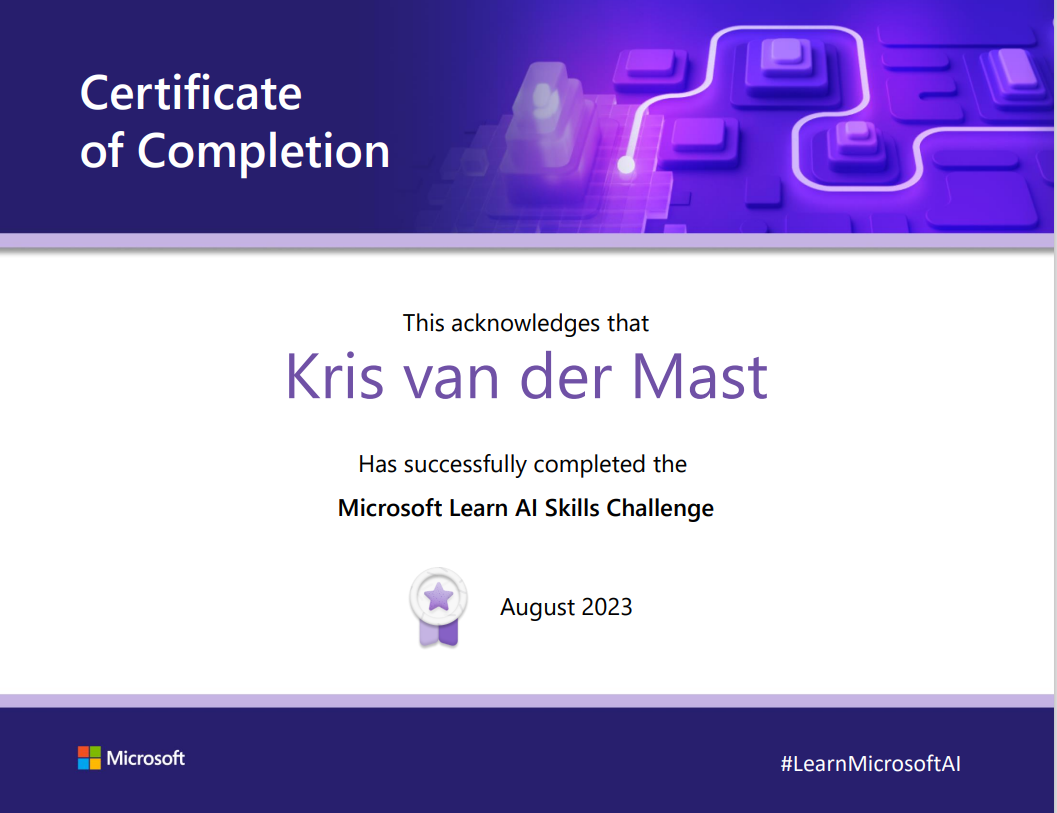
<p>And the certificate:</p>

<p><img src="/images/AI_skills_certificate.png" alt="AI Skills challenge certificate" /></p>]]></content><author><name>Kris van der Mast</name></author><category term="post" /><category term="AI" /><category term="challenge" /><category term="Microsoft learn" /><summary type="html"><![CDATA[A while ago I wrote about the upcoming AI skills challenge. I’m happy to announce that I’ve completed the challenge and obtained my certification.]]></summary></entry><entry><title type="html">Microsoft Learn AI Skills Challenge</title><link href="https://www.krisvandermast.com/post/2023/07/13/microsoft-learn-ai-skills-challenge.html" rel="alternate" type="text/html" title="Microsoft Learn AI Skills Challenge" /><published>2023-07-13T17:01:39+02:00</published><updated>2023-07-13T17:01:39+02:00</updated><id>https://www.krisvandermast.com/post/2023/07/13/microsoft-learn-ai-skills-challenge</id><content type="html" xml:base="https://www.krisvandermast.com/post/2023/07/13/microsoft-learn-ai-skills-challenge.html"><![CDATA[<p>In the past AI was a bit of a strange thing for most people and companies. But today AI is everywhere and it is here to stay. Nowadays most people have heard about Chat GPT or Google Bard or any of all the other cool AI stuff out there. More and more software engineers I know are actively using Github Copilot to help them write code.</p>

<p>So it is time to learn about AI. And Microsoft Learn is the place to be to learn about AI. And to make it even more interesting, Microsoft Learn has a new AI Skills Challenge. You can even win a Microsoft Certification exam voucher. So what are you waiting for? Go to <a href="https://docs.microsoft.com/en-us/learn/">Microsoft Learn</a> and start learning about AI. And don’t forget to take the <a href="https://www.microsoft.com/en-US/cloudskillschallenge/ai/registration/2023">AI Skills Challenge</a>.</p>

<p>The periode the challenge runs is July 17th till August 14th. There are 4 challenges you can take:</p>

<ul>
  <li><a href="https://learn.microsoft.com/en-us/training/challenges?id=9fdc6c5c-ea5e-46e4-97d6-2cbfa3603a73&amp;WT.mc_id=cloudskillschallenge_9fdc6c5c-ea5e-46e4-97d6-2cbfa3603a73">Machine Learning Challenge</a></li>
  <li><a href="https://learn.microsoft.com/en-us/training/challenges?id=150df021-d77d-4e78-b51c-76743f48a4c9&amp;WT.mc_id=cloudskillschallenge_150df021-d77d-4e78-b51c-76743f48a4c9">Machine Learning Operations (MLOps) Challenge</a></li>
  <li><a href="https://learn.microsoft.com/en-us/training/challenges?id=bb49ce83-3aac-4405-8fb1-3eb2335f19f0&amp;WT.mc_id=cloudskillschallenge_bb49ce83-3aac-4405-8fb1-3eb2335f19f0">Cognitive Services Challenge</a></li>
  <li><a href="https://learn.microsoft.com/en-us/training/challenges?id=a84ede31-629f-4510-a52d-33f164e221a6&amp;WT.mc_id=cloudskillschallenge_a84ede31-629f-4510-a52d-33f164e221a6">AI Builder Challenge</a></li>
</ul>

<p>I’m going to participate as well. See you there and happy learning everyone!</p>]]></content><author><name>Kris van der Mast</name></author><category term="post" /><category term="AI" /><category term="challenge" /><category term="Microsoft learn" /><summary type="html"><![CDATA[In the past AI was a bit of a strange thing for most people and companies. But today AI is everywhere and it is here to stay. Nowadays most people have heard about Chat GPT or Google Bard or any of all the other cool AI stuff out there. More and more software engineers I know are actively using Github Copilot to help them write code.]]></summary></entry><entry><title type="html">MVP award regained</title><link href="https://www.krisvandermast.com/post/2023/07/06/mvp-award-regained.html" rel="alternate" type="text/html" title="MVP award regained" /><published>2023-07-06T22:33:42+02:00</published><updated>2023-07-06T22:33:42+02:00</updated><id>https://www.krisvandermast.com/post/2023/07/06/mvp-award-regained</id><content type="html" xml:base="https://www.krisvandermast.com/post/2023/07/06/mvp-award-regained.html"><![CDATA[<p>Last year I <a href="https://www.krisvandermast.com/post/2022/07/01/not-renewed-as-an-mvp.html">didn’t get renewed as an MVP</a>. I was disappointed but I understood the decision as many lost it that time due to the <em>culling</em> after the Covid-19 era where the year before every MVP didn’t loose her/his award and got automatically reawarded.</p>

<p>Well, this year I got the award back. I’m very happy with it and I’m looking forward to another year of MVP awesomeness. I even got a great looking badge on Credly now.</p>

<p>In April 2007 I became an MVP for the first time for <strong>ASP.NET</strong> which was a couple of years later put into a bigger pool of <strong>Developer Technologies</strong> containing not only .NET but also C++, Python, …. In 2016 I becamen an <strong>Azure MVP</strong> (actually in 2016 I had both the Developer Technologies and Azure MVP award). And it ended last year in July 2022.</p>

<p>As of now I’m an <strong>MVP Developer Technologies</strong> again. I’m still going strong organizing <a href="https://www.azug.be">azug meetups</a>, <a href="https://www.cloudbrew.be">CloudBrew conference</a>, <a href="https://www.krisvandermast.com/post/2023/03/04/organized-and-spoke-at-global-ai-bootcamp-belgian-chapter.html">Global AI Belgian chapter</a> and more to come as well as speaking at <a href="https://sessionize.com/KrisvanderMast/">conferences and user groups</a>.</p>

<p>If you want to celebrate with me you might want to buy me a coffee or a beer.</p>

<p><a href="https://www.buymeacoffee.com/KrisvanderMast" target="_blank"><img src="https://cdn.buymeacoffee.com/buttons/v2/default-yellow.png" alt="Buy Me A Coffee" style="height: 60px !important;width: 217px !important;" /></a></p>

<p><img src="https://images.credly.com/size/680x680/images/5c687ffb-7ab6-4fd5-bf8c-14f0178acd21/image.png" alt="MVP badge" /></p>]]></content><author><name>Kris van der Mast</name></author><category term="post" /><category term="MVP" /><summary type="html"><![CDATA[Last year I didn’t get renewed as an MVP. I was disappointed but I understood the decision as many lost it that time due to the culling after the Covid-19 era where the year before every MVP didn’t loose her/his award and got automatically reawarded.]]></summary></entry></feed>