

Github and Visual Studio and two factor authentication
At work I mostly make use of the combination of TFS and Visual Studio. I also fiddle around with Git from time to time. As with the latest Visual Studio there’ also Git integration.
What I did was fork zencoding on github.
When opening our project on Github we need the url to clone. You can find that in the right lower corner:
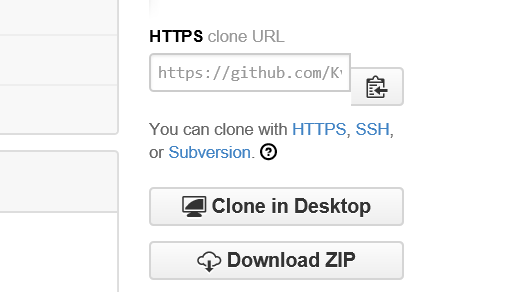
For me that’s https://github.com/KvdM/zencoding.git.
Ok, so now let’s open our IDE of choice: Visual Studio2013. Follow these steps:
- Click in the Team Explorer pane on the button Connect to Team Projects.
- In the Local Git Repositories part click on the Clone link.
- Remember that url we just copied? Well in the textbox that just appeared we paste it.
- Click on the Clone button
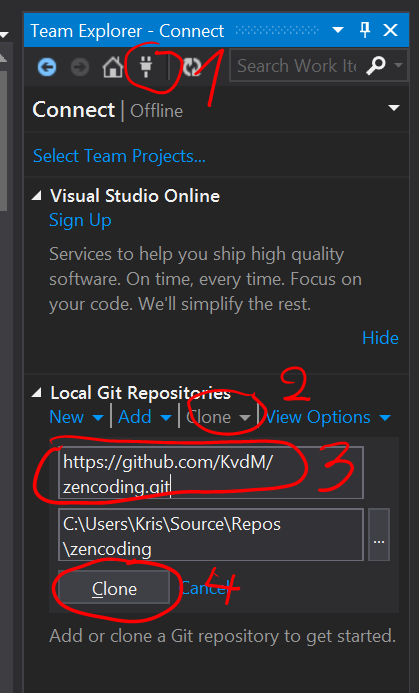
And then we get, after a quick download of the good stuff, the following to see:

Double click on the zencoding name and then the following appears:
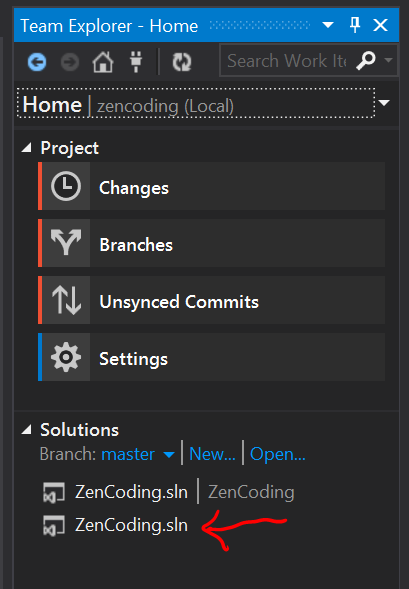
It felt a bit weird to see two .sln files but it turned out to be I had to double click the second one to get the code.
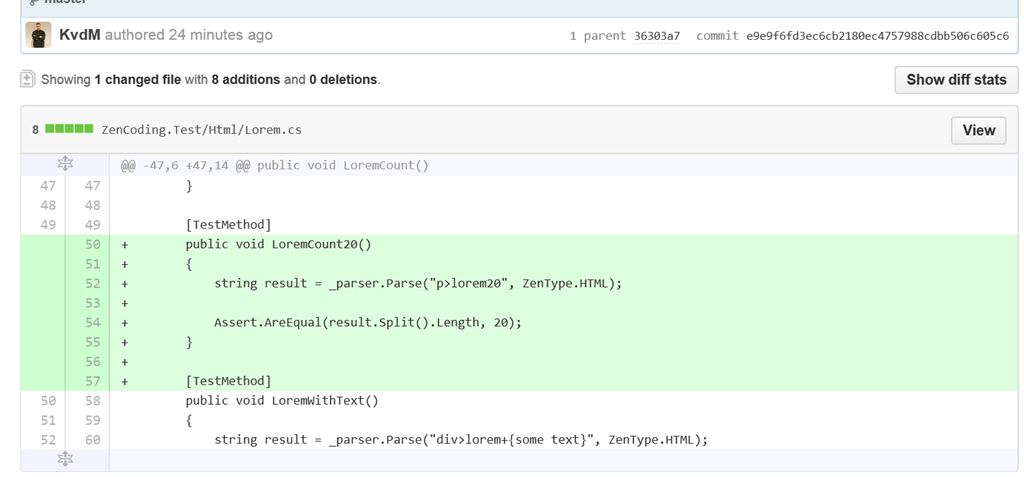
Code! Finally code! Ok let’s try to make a new test method. I put one in the Lorem.cs file:
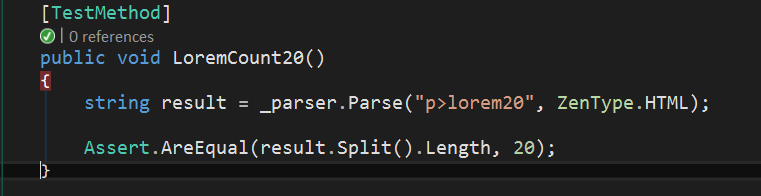
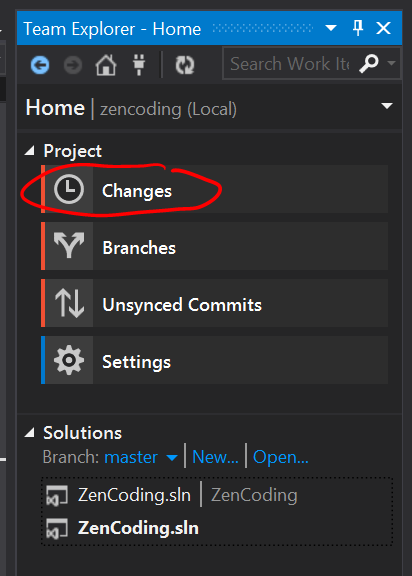
Now open up the Team Explorer pane again and click on Changes:
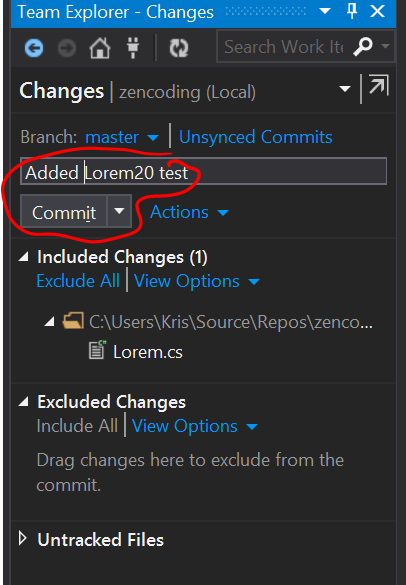
Fill in some comment and click the Commit button:
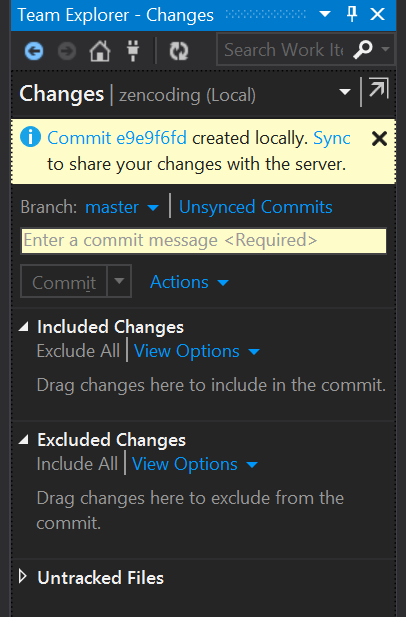
That’s the good message we see now:
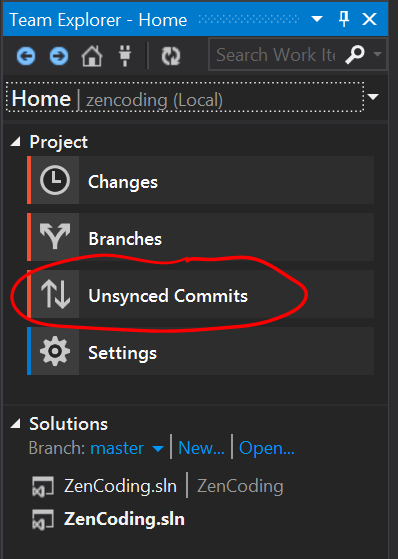
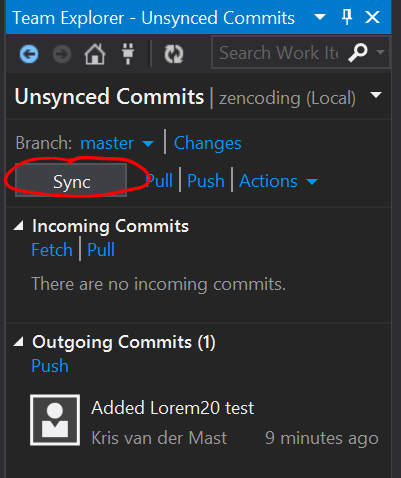
Either we sync from here but it’s more general to go to Team Explorer again and click on the Unsynced commits:
Press the Sync button:
Fill in the credentials:
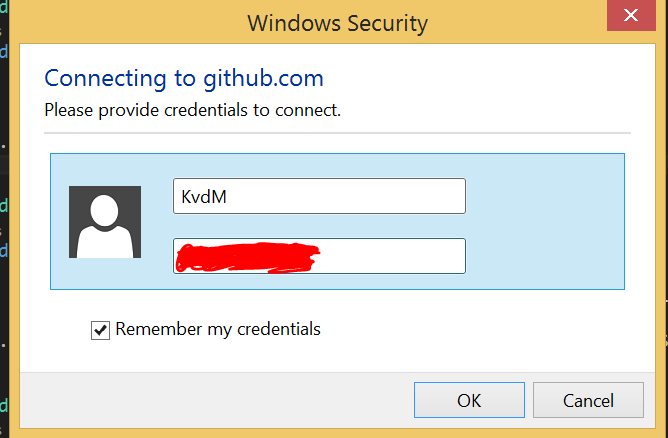
And… I have to fill it in again?? Doing that results in the following:
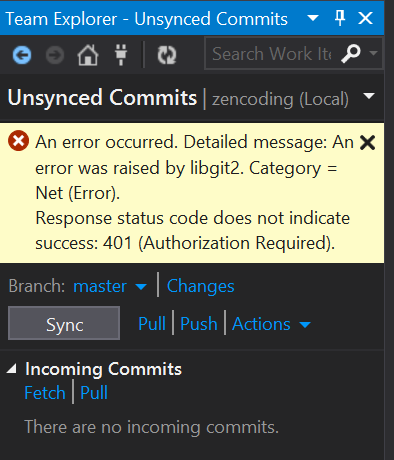
An error occurred. Detailed message: An error was raised by libgit2. Category = Net (/images/Error). Response status code does not indicate success: 401 (/images/Authorization Required).
What? Checking credentials again, typo perhaps, …?
Well it turned out to be that I had two factor authentication turned on. A good thing. However I didn’t see an input field where I could enter the numbers for that extra authentication step (/images/which improves security so be sure to turn it on if you haven’t already).
I asked around and got a good tip from Phil Haack. When you have two factor authentication on you should be able to login via an authentication token. You can generate this on the site of Github. Open Settings > Applications (/images/applications “https://github.com/settings/applications”)) and generate a token.
Copy paste that particular token in a safe place as you’re going to be needing it soon.
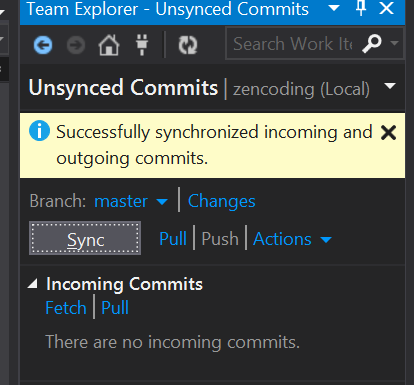
Going back to Team Explorer in Visual Studio we click the Sync button again. The credentials screen shows again and instead of filling in a username we paste in the token we just generated. Leave the password input field blank. Click the OK button and yes, finally we succeeded in synching to Github:
And in Github we can see the changes that came through:
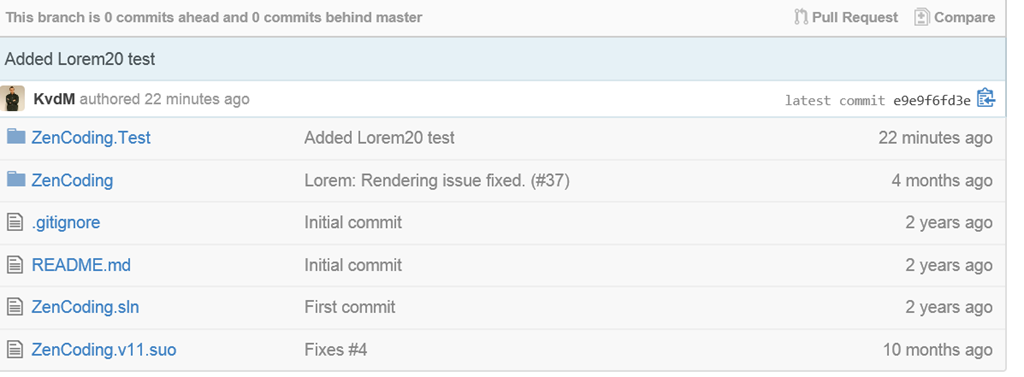
Another tip I got was that you might also need to fill in x-oauth-basic for the password part. Also read out some more documentation here: https://help.github.com/articles/git-automation-with-oauth-tokens.
Be sure to check out Git in Visual Studio. It’s awesome and I’m sure we’ll see more effort in better tooling in the future as well. Of course TFS will stay in there as well as it’s also a great system.
Grz, Kris.
Leave a Comment